Monday, 4 January 2021

Power Apps Snack: Don't repeat yourself (again)

Case
I have some pieces of code in my Power Apps formula that gets repeated multiple times. I don't want to repeat that same piece of code, not only because that is dull, but also because it's very maintenance-sensitive? A simple change in the formula needs to be adjusted in all repeated pieces of code. Is there a better solution?
Use the With function to not repeat yourself


Solution
Yes there is a better solution then repeating the same piece of code over and over. Last year we showed you an option with a custom 'method', but there is also the WITH function that you probably already know from other languages like T-SQL.

For this example we will revisit an old blogpost to get all selected items from a combobox in a label:
Mulitselect ComboBox in Power Apps


The basic solution is using a concat and concatenate function which looks like:
Concat(
    ComboBox_multiselect.SelectedItems.ProductKey,
    Concatenate(
        Text(ProductKey),
        ","
    )
)
This will result in a string with "PrdKey1,PrdKey2,PrdKey3," If you want to get ride of the last comma you can use a left: LEFT(mystring, LEN(mystring) - 1). This is where the code repeating starts:
Left(
    Concat(
        ComboBox_multiselect.SelectedItems.ProductKey,
        Concatenate(
            Text(ProductKey),
            ","
        )
    ),
    Len(
        Concat(
            ComboBox_multiselect.SelectedItems.ProductKey,
            Concatenate(
                Text(ProductKey),
                ","
            )
        )
    ) - 1
)
The trick is to store the result of the code that needs to be repeated in a 'variable' called myProducts with the With function. After that you can use that 'variable' so that you don't need to repeat yourself:
With(
    {
        myProducts: Concat(
            ComboBox_multiselect.SelectedItems.ProductKey,
            Concatenate(
                Text(ProductKey),
                ","
            )
        )
    },
    Left(
        myProducts,
        Len(myProducts) - 1
    )
)

Conclusion
In this post you learned how NOT to repeat yourself by using the With function in Power Apps. Perhaps the code reduction of this basic example is not that big, but we all know that those small pieces of code can quickly get out of control.


Tuesday, 29 December 2020

ADF Snack: get files of last hour

Case
I have a Data Factory pipeline that should run each hour and collect all new files added to the data lake since the last run. What is the best activity or do we need to write code?
No scripts, no loops


Solution
The Copy Data Activity has a wildcard filter which allows you to read multi files (of the same type/format) at once. So no need for a ForEach Activity to process multiple files at once. Combine that with the start- and enddate filter option within that same Copy Data Activity and you can limit the files to a certain period.

Date filter
The End datetime property will be populated with the start-datetime of the current ADF pipeline. So files added during the run of the pipeline will be skipped and processed during the next run. This End datetime will also be stored afterwards for the next run.
The Start datetime will be retrieved from a database table. The previous run of the pipeline stored its End datetime as the Start datetime for the next run.
The basic setup


1) Table and stored procedures
To store (and retrieve) the datetime from the pipeline we use a database table and some Stored Procedures. To keep it easy we kept it very very basic. Feel free to extend it to your own needs. In this solution there will be only one record per source. The SetLastRun stored procedure will either insert a new record or update the existing record via a MERGE statement. The GetLastRun stored procedure will retrieve the datetime of the last run and return a default date if there is no record available.
-- Create runs table
CREATE TABLE [dbo].[Runs](
	[SourceName] [nvarchar](50) NOT NULL,
	[LastRun] [datetime2](7) NULL,
	CONSTRAINT [PK_Runs] PRIMARY KEY CLUSTERED 
	(
	[SourceName] ASC
	)
)

-- Save the lastrundate
CREATE PROCEDURE SetLastRun
(
    @SourceName as nvarchar(50)
,	@LastRun as datetime2(7)
)
AS
BEGIN
    -- SET NOCOUNT ON added to prevent extra result sets from
    -- interfering with SELECT statements.
    SET NOCOUNT ON

	-- Check if there already is a record
	-- Then Insert of Update a record
    MERGE dbo.Runs AS [Target]
    USING (SELECT @SourceName, @LastRun) AS [Source] ([SourceName], [LastRun])  
    ON ([Target].[SourceName] = [Source].[SourceName])  
    WHEN MATCHED THEN
        UPDATE SET [LastRun] = [Source].[LastRun]  
    WHEN NOT MATCHED THEN  
        INSERT ([SourceName], [LastRun])  
        VALUES ([Source].[SourceName], [Source].[LastRun]);  
END
GO

-- Retrieve the lastrundate
CREATE PROCEDURE GetLastRun
(
    @SourceName as nvarchar(50)
)
AS
BEGIN
	DECLARE @DefaultDate as datetime2(7) = '1-1-1900'

	-- Retrieve lastrun and provide default date in case null
	SELECT	ISNULL(MAX([LastRun]), @DefaultDate) as [LastRun]
	FROM	[Runs] 
	WHERE	[SourceName] = @SourceName
END
GO

2) Retrieve datetime last run
So the first step in the pipeline is to execute a stored procedure that retrieves the End datetime of the previous run. As mentioned a default datetime will be returned if there is no previous run available. Due the lack of getting output parameters we will use the Lookup activity instead of the Stored Procedure activity.
  • Add a Lookup activity to the pipeline and give it a descriptive name
  • On the Settings tab add or reuse a Source dataset (and Linked service) that points to the database containing the table and store procedures of the previous step (don't point to a specific table).
  • Choose Stored Procedure under the Use query property
  • Select 'GetLastRun' as Stored procedure name and hit the Import button to get the paramaters from the stored procedure
  • Now either use a hardcoded source name or use an expression like @pipeline().Pipeline to for example use the pipeline name as source.
Execute Stored Procedure via Lookup to retrieve last rundate


3) Copy Data Activity
The second step is to retrieve the actual data from the data lake with a Copy Data activity. With two expressions it will first retrieve the datetime of the previous step and use it as the starttime filter and secondly retrieve the Start datetime of the pipeline itself and use that as Endtime filter.
  • Add the Copy Data Activity and set it up to load a specific file from the data lake to a SQL Server table (or your own destination)
  • Now on the Source tab change the File path type to Wildcard file path
  • Then set the Wildcard file name to for example read all CSV files with *.csv instead of a specific file.
  • Next set the Start time (UTC) property under Filter by last modified to the following expression:
    @activity('Get Last Run').output.firstRow.LastRun. Where the yellow marked text is the name of the previous task and the green marked text is the output of the Stored Procedure (more details here).
  • Also set the End time (UTC) property with the following expression:
    @pipeline().TriggerTime (this will get the actual starttime of the pipeline)
  • You also might want to add an extra metadata column with the Filename via the Additional columns option (more details here).
Set up wildcard and datetime filters


4) Store datetime for next run
The last step is to save the Start datetime of the pipeline itself as run datetime so that it can be retrieved in the next run. Since this Stored Procedure doesn't have any output parameters we can use the standard Stored Procedure Activity.
  • Add the Stored Procedure activity and connect it to the previous activity
  • On the Settings tab reuse the same Linked service as in step 2
  • Select SetLastRun as the Stored procedure name
  • Hit the import button and set the parameters
    • LastRun should be filled with the startdatetime of the pipeline: @pipeline().TriggerTime
    • SourceName should be filled with the same expression as in step 2
Add Stored Procedure to save rundate


5) Schedule
Now just schedule your pipeline every x minutes or x hours with a trigger to keep your database table up-to-date with files from the data lake. Then keep adding files to the data lake and watch your runs table (step 1) and the actual staging table to see the result. The optional metadata column of step 3 should make debugging and testing a lot easier.


Summary
In this post you learned how to use the wildcard and filter option of the Copy Data activity to create a mechanism to keep your data up-to-date. A downside of this solution is that it will sometimes run the pipeline unnecessarily because no new files where added to the data lake. An other downside is that the process is not realtime.

If you need a more (near-)realtime solution instead of running every x minutes or hours then you can use the trigger solution. Then you process files as soon as they arrive. However that solution has two downsides. First of all you are running the pipeline for each file. Which means you are paying for each file. Secondly there is a limit for the number of files that can be triggered per hour as specially when you don't want (or can't) process files in parallel. The execution queue has a limit of 100 executions per pipeline. After that you will receive an error and miss that file.

Sunday, 27 December 2020

ADF Snack: use stored procedure output

Case
I want to execute a Stored Procedure in Azure Data Factory and use its output further on in the pipeline. The stored procedure activity does not return the output. How do you accomplish that?
Stored Procedure Activity not working for output


Solution
At the moment the Stored Procedure Activity in ADF doesn't handle output parameters, but there is a workaround.

1) Alter Stored Procedure
ADF can't handle output parameters, but you can add a SELECT statement at the end to return the value. Make sure to add an alias, but also make sure to only return one row in your SELECT query.
-- Alter Stored Procedure
ALTER PROCEDURE AddNumbers
(
    -- Parameters
    @number1 as int
,	@number2 as int
,	@Result as int output
)
AS
BEGIN
	-- Do the math
    set @Result = @number1 + @number2
	-- For ADF
	select @Result as Result
END

2) Use Lookup Activity instead
Now instead of using the Stored Procedure Activity we will be using the Lookup Activity.
  • Add a Lookup activity to the pipeline and give it a descriptive name
  • On the Settings tab, add a new Source Data pointing to the database with the Stored Procedure. Leave the table property of the dataset empty (we will use a Stored Procedure instead).
  • After adding the Source dataset, choose Stored Procedure under the Use query property
  • Next select your Stored Procedure
  • Import the parameters
  • Set the parameter values (output parameters that are not used by ADF should be Treat as null
  • Make sure the option First row only is enabled
  • Now debug your pipeline and compare the output of the Lookup activity with the Stored Procedure activity. In the next step we will show you the expression to retrieve this value.
Using the Lookup activity to execute a Stored Procedure


3) Getting the output of the Stored Procedure
Now with an expression in a next activity you can retrieve the output value of the Stored Procedure executed in the Lookup activity: @activity('Do some more math').output.firstRow.Result
The yellow part is the name of the Lookup activity and the green part is the result:
Compare the red part with the expression


If you want to store the result in a pipeline variable then you might need to add a type conversion @string(activity('Do some more math').output.firstRow.Result)

Convert int to string


Summary
The Stored Procedure activity is pretty useless when trying to get some output from a Stored Procedure, but there is a simple workaround with the Lookup activity. In the next blog post we will show an other example of using the output of a stored procedure within ADF.

Saturday, 14 November 2020

Process Analysis Service with Firewall in ADF only

Case
How do I process my Azure Analysis Services (AAS) within Azure Data Factory (ADF) when the firewall of AAS is turned on? I 'm getting the following error:

Cannot connect to server 'bitools'. Client with IP Address '40.74.24.250' is not allowed to access the server. To enable access, use the Firewall settings in Azure Management Portal. It may take up to 5 minutes for this change to take effect. More information on configuring firewall and setting IP address ranges can be found here: https://go.microsoft.com/fwlink/?linkid=2099963
Azure Anaylis Services with firewall turned on


Solution
Within ADF you have two options. The first option is to add the IP addresses of ALL data factories within your region to the firewall of AAS. You can download a list and add those IP addresses to the firewall. You could even schedule a powershell script to do that for you to keep your firewall up-to-date in case the list changes. A downside could be that now a lot of data factories can access your AAS.

The second option is to retrieve the public IP address of your current ADF during runtime and then add it temporarily to the firewall of AAS. Note that this is a first attempt which still needs some improvement and testing to make it future proof. First a picture of the solution and then detailed steps of each activity.
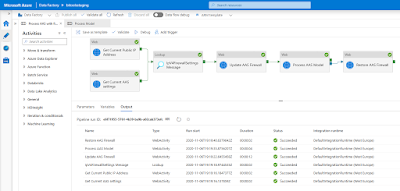
The solution


1) Add ADF as contributer to AAS
Since we will chance the service settings of AAS from within ADF, we will need to use Access control (IAM) to make our ADF a contributor for the AAS where we want to change the firewall. Note that this step will not give ADF access to the models, but only to the service.
  • Go to your AAS in the Azure portal
  • In the left menu click on Access control (IAM)
  • Click on + Add and choose Add role assignment
  • In the new Add role assignment pane select Contributor as Role
  • In the Assign access to dropdown select Data Factory
  • Select the right Subscription
  • And then Select your Data Factory and click on the Save button
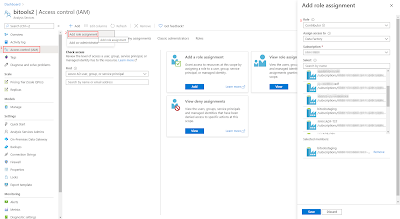
Add ADF as Contributor to AAS


2) Get Current Public IP Address of ADF
Now back to ADF. You can execute a webrequest to one of the many public services to retrieve the public IP address of the ADF server that runs your pipeline:
  • https://icanhazip.com
  • https://ident.me
  • https://ifconfig.me/ip
  • https://ipinfo.io/ip
  • http://smart-ip.net/myip
Now the steps to take:
  • Create a new pipeline in ADF and add a Web activity
  • Give the activity a descriptive name because we need it in a subsequent activity
  • Add one of the above web addresses as URL on the Settings tab
  • The last step is to select GET as method
In a subsequent activity that is connected to this Web activity we use the follow expression to retrieve the IP Address: @activity('Get Current Public IP Address').output.Response
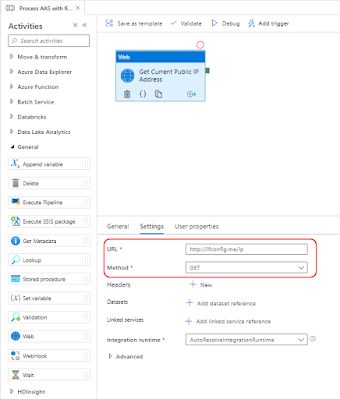
Get Public IP address of ADF


3) Get Current AAS settings
The Rest API that sets the firewall settings of AAS can unfortunately not add a single firewall rule. Instead it will delete all rules and then add news ones. To avoid other services or persons losing access to the AAS server we first need to retrieve the current settings. This is done via a Rest API. Therefore the first step is to determine the Rest API URL. Replace in the string below, the <xxx> values with the subscription id, resourcegroup name and servername of your Analysis Services. The Rest API method we will be using is 'Get Details':
https://management.azure.com/subscriptions/<xxx>/resourceGroups/<xxx>/providers/Microsoft.AnalysisServices/servers/<xxx>?api-version=2017-08-01
Example:
https://management.azure.com/subscriptions/aaaa-bbbb-123456-cccc/resourceGroups/RG_production/providers/Microsoft.AnalysisServices/servers/bitoolsserver?api-version=2017-08-01

Add a second Web activity to the pipeline
  • Give the activity a descriptive name because we need it in a subsequent activity
  • Add the above web address as URL on the Settings tab
  • Next select GET as method
  • Under Advanced set Authentication to MSI
  • Set Resource to https://management.azure.com/
The Rest API will return a JSON message with ALL the settings of the service, including the firewall rules. In a next step we can retrieve these settings with the following expression:
@STRING(activity('Get Current AAS settings').output)
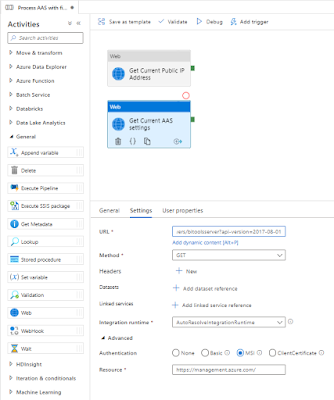
Retrieve AAS Service settings


4) Merge current firewall settings with new ip address
In this step we will merge the current firewall settings (from step 3) with the runtime ip address of ADF (from step 2). Unfortunately the expression language of ADF is not that extensive (yet). For example the indexof expression does not have a search starting position. Therefore for now we have chosen to merge those two with a little Stored Procedure. But please share your suggestion for alternatives in the comments.

First add the following Stored Procedure to one of your Azure SQL databases. It will return both the current firewall setting part of the entire JSON and the new adjusted firewall part. That first one can be used to restore the settings as final step.
T-SQL Stored Procedure
CREATE PROCEDURE [dbo].[UpdateIpV4FirewallSettings]
(
	@jsonmessage nvarchar(max)
,	@firewallRuleName nvarchar(50)
,	@ipAddress nvarchar(20) 
)
AS
BEGIN
	-- =============================================
	-- Recieves the current AAS settings as a JSON
	-- message and extracts the firewall settings
	-- from it. Then the firerullname and the ip
	-- address are added.
	--
	-- The select query returns the new and old
	-- firewall settings to update and restore
	-- afterwards.
	-- =============================================

	SELECT	CAST(
				SUBSTRING(@jsonmessage, 1, 15) + -- properties
				SUBSTRING(@jsonmessage, CHARINDEX('"ipV4FirewallSettings":',@jsonmessage , 1), CHARINDEX(']',@jsonmessage , CHARINDEX('"ipV4FirewallSettings":',@jsonmessage , 1)) - CHARINDEX('"ipV4FirewallSettings":',@jsonmessage , 1)) + -- oldfirewallrules
				iif(CHARINDEX('"firewallRuleName":"' + @firewallRuleName, @jsonmessage , 1) > 0 OR CHARINDEX(@ipAddress, @jsonmessage , 1) > 0,'',',{"firewallRuleName":"' + @firewallRuleName +'","rangeStart":"' + @ipAddress + '","rangeEnd":"' + @ipAddress + '"}') + -- newfirewallrules
				SUBSTRING(@jsonmessage,CHARINDEX('],"enablePowerBIService":',@jsonmessage , 1), CHARINDEX('}',@jsonmessage , CHARINDEX('],"enablePowerBIService":',@jsonmessage , 1)) - CHARINDEX('],"enablePowerBIService":',@jsonmessage , 1) + 1) + -- powerbirules
				'}}' -- end
			as nvarchar(4000))
			as NewFirewallSettings
	,		CAST(
				SUBSTRING(@jsonmessage, 1, 15) + -- properties
				SUBSTRING(@jsonmessage, CHARINDEX('"ipV4FirewallSettings":',@jsonmessage , 1), CHARINDEX(']',@jsonmessage , CHARINDEX('"ipV4FirewallSettings":',@jsonmessage , 1)) - CHARINDEX('"ipV4FirewallSettings":',@jsonmessage , 1)) + -- oldfirewallrules
				SUBSTRING(@jsonmessage,CHARINDEX('],"enablePowerBIService":',@jsonmessage , 1), CHARINDEX('}',@jsonmessage , CHARINDEX('],"enablePowerBIService":',@jsonmessage , 1)) - CHARINDEX('],"enablePowerBIService":',@jsonmessage , 1) + 1) + -- powerbirules
				'}}' -- end
			as nvarchar(4000))
			as oldFirewallSettings
END

Now back to the pipeline to merge the json message and the ip address. We will solve this by calling the above Stored Procedure within a Lookup activity.
  • Add the Look up activity and give it a descriptive name (we need it in the next step)
  • Connect both previous activities to this new activity (in parallel, see screenshot)
  • Go to the settings tab and select the (/ create a) Source dataset that connects to the Azure SQL Database that contains the above Stored Procedure
  • Select Stored Procedure under Use query
  • Select the new Stored Procedure under Name
  • Hit the Import parameter button to add three string parameters
  • Enter the following expressions
    • firewallRuleName - @concat('ADF-',pipeline().DataFactory)
    • ipAddress - @activity('Get Current Public IP Address').output.Response
    • jsonmessage - @STRING(activity('Get Current AAS settings').output)
The output of this activity will be use in the next activity:
@activity('IpV4FirewallSettings Message').output.firstRow.NewFirewallSettings
@activity('IpV4FirewallSettings Message').output.firstRow.OldFirewallSettings
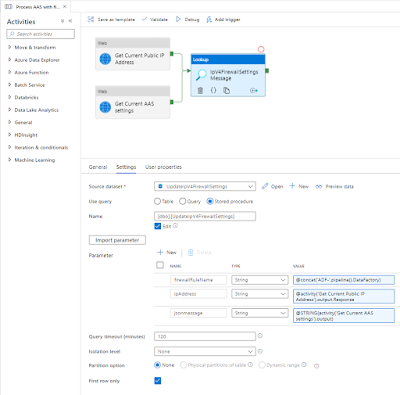
Lookup Activity calling Stored Procedure


5) Update AAS Firewall
In this step we will update the firewall settings of AAS to allow ADF to process the tabular model. This is done via a Rest API call of the Update method within a Web activity. This is exactly the same URL as step 3. Copy it

Add an other Web activity to the pipeline and connect it to the last activity (see screenshot).
  • Give the activity a descriptive name
  • Add the web address from step 3 as URL on the Settings tab
  • Next select PATCH as method (instead of GET like in step 3)
  • Click on + New after Headers to add a new header
    • Use Content-type as Name
    • Use application/json as Value
  • As body we will use the NewFirewallSettings from the previous step:
    @activity('IpV4FirewallSettings Message').output.firstRow.NewFirewallSettings
  • Under Advanced set Authentication to MSI
  • Set Resource to https://management.azure.com/
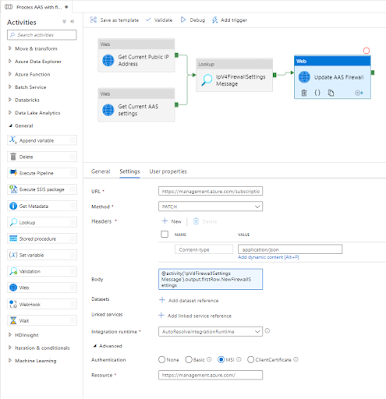
Update AAS Firewall


6) Process AAS model
Finally we can do the actual processing of the tabular model. Since we all ready described this in detail in a previous post you have to take a little trip to that post. Make sure to connect the new Web activity to the last activity in the pipeline (see screenshot).
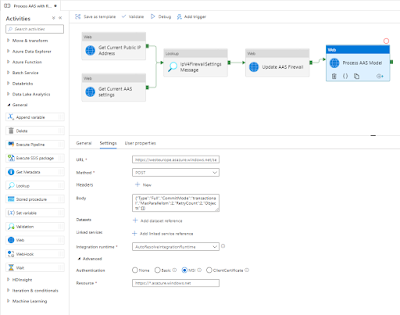
Process AAS tabular model


7) Update AAS Firewall
The last step is to restore the firewall settings so this ADF server will no longer have access to your AAS. The steps are almost identical to step 5 with two differences. Copy and paste that Web activity and connect it to the process activity, but then change the green Success line to a blue completion line. Then it will always restore the firewall settings even if the process fails.
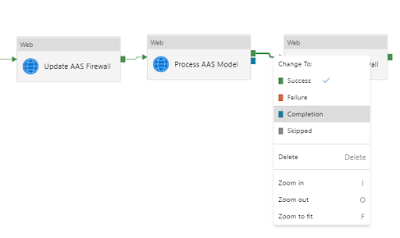
Change the dependency condition between the activities


Next change  is the Body property on the Settings pane. Change it to retrieve the OLD firewall settings:
@activity('IpV4FirewallSettings Message').output.firstRow.OldFirewallSettings
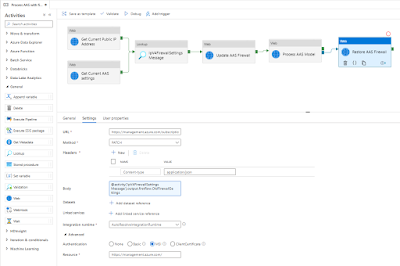
Restore AAS firewall


Summary
In this post you saw a (experimental) solution to handle the firewall problem: adding the IP address of a shared service/server to your AAS firewall. This is especially necessary when your service doesn't support VNET (like AAS).

There is still a lot of room for improvements. In particular the merge part in step 4. An other concern is that the activities of one pipeline could be executed by multiple ADF servers (each having there own ip address). 

Feel free to experiment with this solution and leave your suggestions for improvements in the comments below. However don't use it in a production environment... or do it at your own risk.

I a feature post we will download the JSON file with Azure IP Address and at those to the firewall.