Sunday, 31 July 2022

Skipped dependency between pipeline activities

Case
Where is the Skipped dependency between ADF or Synapse pipeline activities useful for?
Skipped dependency


Solution
The Skipped dependency will execute the next activity if the previous activity is not executed. For example because the activity before that previous activity failed.

You could for example use this to create a general event handler for the entire pipeline by connecting the end of each 'line' to a dummy activity and then to an event handler or notification activity. The dummy activity is required because it will be skipped if anything fails. The (1 sec) Wait activity is probably the easiest to use.
If something fails the Web activity will execute


If any of these activities above fails then the 'Dummy' Wait activity will not be executed and as a result the Web activity with the Skipped dependency will be executed. If all activities are succesful then the 'Dummy' Wait activity will be executed, but the Web activity won't .

Conclusion
In this post you learned one of the usages of the Skipped dependency, but please post your usage of the Skipped dependency in the comments below.

Note that it will wait for all 'lines' to be finished before the Dummy activity is skipped. So if Stored Procedure 1 fails then the Dummy activity still needs to wait for Stored Procedure 2, 3 and 4 to be ready (failed or succeeded). This is because the dependencies is ADF are a logial AND (in SSIS you could also change it to be a logical OR).


Wednesday, 8 June 2022

Break or stop ForEach loop in ADF and Synapse

Case
I have a pipeline with a parallel Foreach loop to execute for example multiple Stored Procedures, but if one of those fails I want to stop the Foreach executing more Stored Procedures. Can I break the Foreach loop in case of an error without turning it from parallel into sequential? 
Can you stop a ForEach Loop? Nope!


Solution
You can't stop the foreach loop itself on error, but if an iteration fails then you can cancel the entire pipeline that is running the foreach loop. When the pipeline is running it gets a RUN ID and you can use that to call a Rest API to cancel the current pipeline run if one of the Stored Procedures inside the ForEach fails.
Cancel the entire pipeline


1) Give ADF/Synapse access to its own Rest APIs
To use the Rest APIs of ADF or Synapse within a pipeline you first need to give ADF or Synapse access to its own Rest APIs. This can be done in the Azure Portal on the overview page of the service.
  • Open the Azure Portal in your browser and go to the overview page of your Data Factory or Synapse Workspace.
  • In the left menu click on Access control (IAM)
  • Click on +Add and then choose Add role assignment
  • Select the role Contributor or for ADF Data Factory Contributor and click on Next
  • Under Assign access to select Manged identity
  • Under Members click on +Select members
  • Now you need to select Synapse workspace or Data Factory (V2) and search for your ADF or Synapse
  • Click on your Synapse or ADF and click on the Select button
  • Optionally enter a description: "Give ADF/Synapse access to its own Rest APIs"
  • Click on the Review + assign button (twice) 
The animated GIF is from a Synapse workspace, but it is identical to Data Factory. Just select Data Factory as Managed identity type.
Giving Synapse access to its own Rest APIs


2) Add Web Activity in Foreach on fail
In the ForEach loop construction we need to add a Web Activity to call the Rest API that cancels the Pipeline run. Data Factory and Synapse have a different URL to cancel the pipeline. Within the example URL you need to replace the red parts with the curly brackets by either a hard code value, a parameter or a System Variable. For Data Factory and Synapse you can use the same System Variabes to retrieve the factoryName/workspaceName and the runId: pipeline().DataFactory / pipeline().RunId

Azure Data Factory:
https://management.azure.com/subscriptions/{subscriptionId}/resourceGroups/{resourceGroupName}/providers/Microsoft.DataFactory/factories/{factoryName}/pipelineruns/{runId}/cancel?api-version=2018-06-01

@concat('https://management.azure.com/subscriptions/',
pipeline().parameters.subscriptionId
'/resourceGroups/',
pipeline().parameters.resourceGroup,
'/providers/Microsoft.DataFactory/factories/',
pipeline().DataFactory,
'/pipelineruns/',
pipeline().RunId,
'/cancel?api-version=2018-06-01')

Azure Synapse Workspace
{endpoint}/pipelineruns/{runId}/cancel?api-version=2020-12-01

or a little easier:
https://{workspaceName}.dev.azuresynapse.net/pipelineruns/{runId}/cancel?api-version=2020-12-01

@concat('https://',
pipeline().DataFactory,
'.dev.azuresynapse.net/pipelineruns/',
pipeline().RunId,
'/cancel?api-version=2020-12-01')

  • In the ForEach add a Web Activity and connect it to your existing activity
  • Make sure to change the type of the line from Success to Failure
  • Give the Web Activty a useful name and go to the Settings tab
  • For URL use and expression like above (don't forget to add parameters if you use them)
  • Set the Method to POST
  • Enter a fake/dummy JSON message in the body. We don't need it, but it is required
  • Set the Authentication to System Assigned Managed Identity
  • And last set the Resource to https://management.azure.com/
Web Activity to Cancel the pipeline run


3) Testing
For this example we used 10 Stored Procedures of which one of them fails on purpose. First make sure to publish the pipeline and then trigger the pipeline (don't use Debug). Then check the monitor to see the result.
One Stored Procedure Failed, rest is cancelled


Conclusion
In this post you learned how to stop a running pipeline when one of the activities within a foreach loop fails so that is doesn't unnecessary executes new activities. One of the downsides is that in the logs the status of your pipeline will be 'Cancelled' instead of 'Failed', but it saves you running (and paying for) unnecessary activities.

Another downside is that it does not work in debug mode because then you don't get a RUN ID and there is no pipeline run to cancel. The workaround for that is to put the Web Activity that cancels your pipeline in an IF construction that only cancels if the RUN ID is not 0.

The usefulness of this construction get better if you have a lot of iterations and hopefully it's not the last iteration that failed. Let us know in the comments what you think of a construction like this and if you have an alternative solutions.

Thursday, 2 June 2022

ADF Snack: Trigger every hour during office hours

Case
I want to trigger my ADF or Synapse pipeline every hour (or every 30 minutes) during office hours. How do I run my pipeline each hour without creating a separate trigger for each hour?
Don't want separate triggers for each hour


Solution
It is easier then you think. Create a new trigger and set Recurrence to Days and 1. Then just add one by one the number 8 to 17 under hours and 0 under minutes

Run pipeline each hour during business hours


If you want it run each half an hour then just add 0 and 30 under minutes.
Run pipeline each 30 minutes during business hours


Thursday, 19 May 2022

Refresh single table in PBI Dataset from within ETL

Case
I have one big Power BI dataset with multiple source tables and one of those source tables is refreshed once every hour and all the other tables are only refreshed once a day. How can refresh only specific tables within my Power BI dataset via an ADF or Synapse pipeline?
Using XMLA enpoints in Power BI


Solution
To accomplish this you need the XMLA enpoints in Power BI. Those XMLA enpoints provide access to the Analysis Services engine in Power BI giving you extra options for your dataset like only refreshing a single table (or a couple of tables).

However, XMLA enpoints are only availble for premium workspaces. So you either need Power BI premium (capacity) or Power BI premium per user. This doesn't work for Power BI PRO.

1) Enable XMLA endpoints
First make sure the XMLA endpoints are enabled in the Tenant settings. For this you need a Power BI administrator role.
  • Log in to PowerBI.com
  • Click on the gear icon in the top right corner
  • Choose Admin Portal
  • Click on Tenant settings in the Admin portal menu. If you don't see that option then you don't have the PBI admin role
  • Scrole down to Integration settings
  • Expand 'Allow XMLA endpoints and Analyze in Excel with on-premises datasets'
  • Check whether it is enabled for either The entire organization or Specific security groups. If it is set to Specific security groups make sure that your user and the Service Principal or the Managed Identity of ADF/Synapse is in that group.
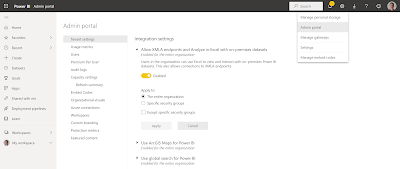
Allow XMLA endpoints and
Analyze in Excel with on-premises datasets


2) Set to Read-Write
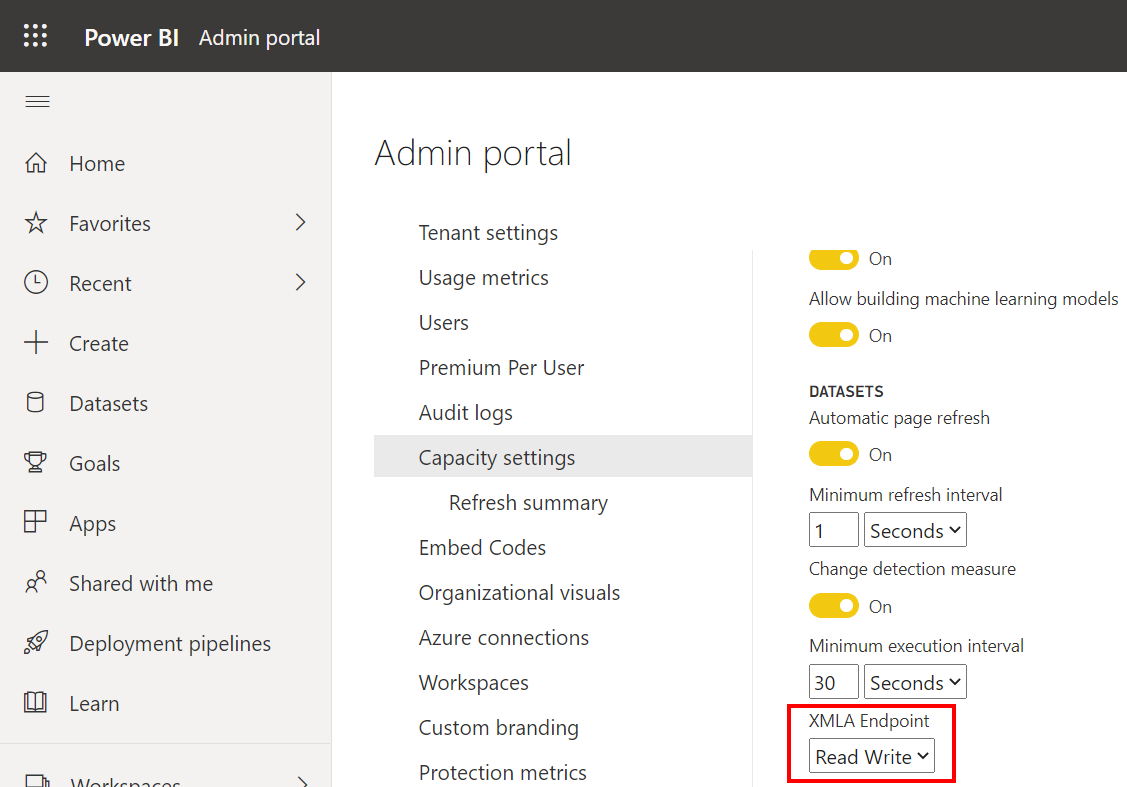
Depending or the premium license type you go to Premium Per User or to Capacity settings in the same Admin portal menu. And if you have multiple Capacities then first go to the specific Capacity.
  • In the Admin portal go to Premium Per User or to Capacity settings (depending on your license)
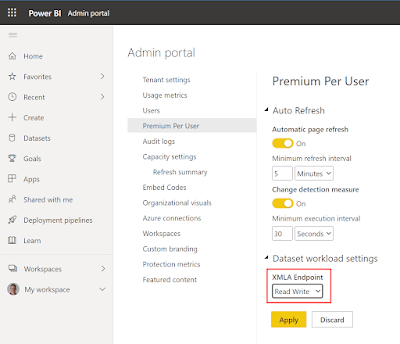
  • Locate the XMLA Endpoint setting and set it to Read Write
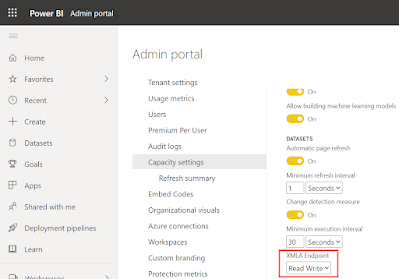
XMLA endpoints for Premium Capacity


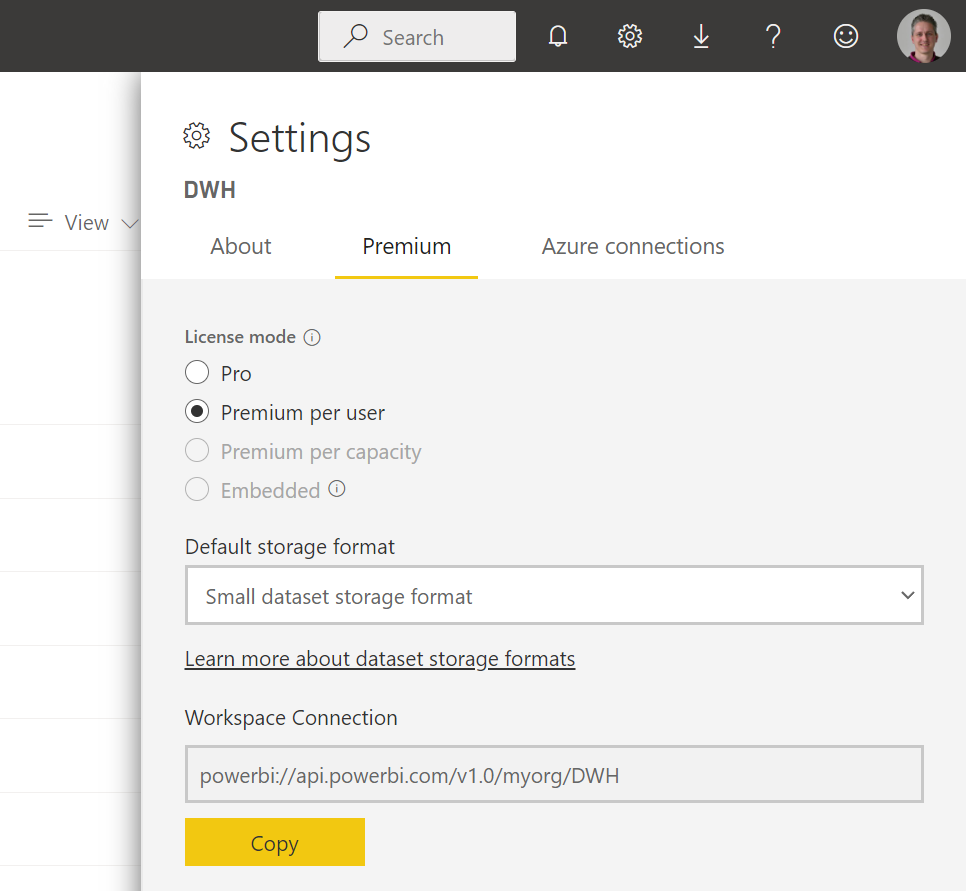
XMLA endpoints for Permium per user


3) Premium workspace
Now go to the Power BI Workspace where your dataset is located and make sure the workspace is a Premium workspace. You can change it in the Settings in the upper right corner.


4) Create JSON message 
Now go to your ADF or Synapse pipeline that refreshes the Power BI dataset where you either use a Service Principal or a Managed Identity to access Power BI. All those steps are described in details in those two posts.
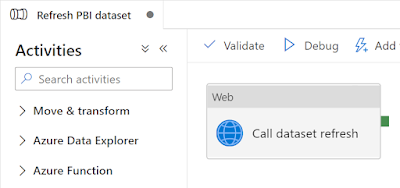
Web Activity to refresh a Power BI dataset


The body of this Web Activity contains options for refreshing the dataset. Our basic example only contained an option to skip notifications: {"notifyOption":"NoNotification"}. This message can also contain settings to refresh only certain tables. Check DatasetRefreshObjects and DatasetRefreshType in the documentation and create a JSON messages like this where we refresh only the data of two tables: myFact and myDim.

{"notifyOption":"NoNotification"
,"objects":"[{"table":"myFact"},{"table":"myDim"}]"
,"type":"DataOnly"}
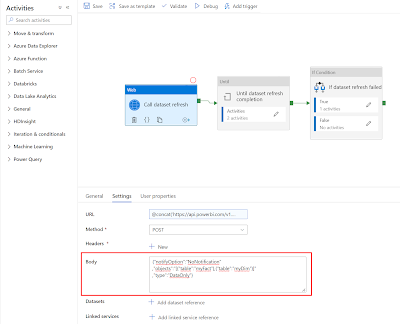
Refresh specific tables in a PBI dataset


5) Create JSON message via SQL
If you want to make that a little more flexible then you can put a Lookup activity in front of it that gets the tables from query like this:
SELECT CONVERT(VARCHAR(MAX),
    (SELECT [table]
    FROM [META].[DatasetContinuousRefresh]
	WHERE Active = 1
    FOR JSON PATH)
) as body
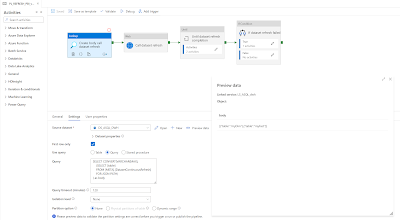
Lookup activity to get table names in a JSON output


Instead of the hardcoded body in the Web activity you can create something more dynamic with an expression like:
@concat('{"notifyOption":"NoNotification"'
,if(pipeline().parameters.ContinuousLoad,concat(',"objects":"',activity('Create body call dataset refresh').output.firstRow.body,'"'),'')
,',"type":"DataOnly"}')

The entire pipeline to refresh a Power BI dataset via its name (instead of the ID) looks something like this:
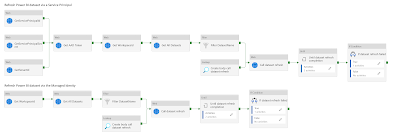
The complete refresh PBI dataset pipeline


Please check the previous blog posts for all the details

Conclusions
In this post we showed you how to refresh only a single table or just a couple of tables within a Power BI dataset. This could save you a lot of refresh time if you don't want to refresh all tables each and every time. The only downside is that Power BI PRO is not enough and you need access to the Power BI admin portal to set the XMLA settings.

thx to colleague Hans Timmerman for helping.

Friday, 13 May 2022

DevOps: SQL Server - NETFramework v4.5 not found

Case
I have a DevOps pipeline to build and deploy my Azure SQL Server Database, but it is giving an .NET Framework error stating that it can't find the framework version. It did work before, how can I solve it?
error MSB3644: The reference assemblies for
 .NETFramework,Version=v4.5 were not found.


The entire error message in Azure DevOps:
##[section]Starting: 1. Creating Artifact
==============================================================================
Task         : MSBuild
Description  : Build with MSBuild
Version      : 1.199.0
Author       : Microsoft Corporation
Help         : https://docs.microsoft.com/azure/devops/pipelines/tasks/build/msbuild
==============================================================================
##[command]"D:\a\_tasks\MSBuild_c6c4c611-aa2e-4a33-b606-5eaba2196824\1.199.0\ps_modules\MSBuildHelpers\vswhere.exe" -version [17.0,18.0) -latest -format json
##[command]"C:\Program Files\Microsoft Visual Studio\2022\Enterprise\MSBuild\Current\Bin\msbuild.exe" "D:\a\1\s\SQL\myDWH\myDWH.sqlproj" /nologo /nr:false /dl:CentralLogger,"D:\a\_tasks\MSBuild_c6c4c611-aa2e-4a33-b606-5eaba2196824\1.199.0\ps_modules\MSBuildHelpers\Microsoft.TeamFoundation.DistributedTask.MSBuild.Logger.dll";"RootDetailId=|SolutionDir=D:\a\1\s\SQL\myDWH|enableOrphanedProjectsLogs=true"*ForwardingLogger,"D:\a\_tasks\MSBuild_c6c4c611-aa2e-4a33-b606-5eaba2196824\1.199.0\ps_modules\MSBuildHelpers\Microsoft.TeamFoundation.DistributedTask.MSBuild.Logger.dll"  /p:_MSDeployUserAgent="VSTS_3aa34741-51f2-4a22-9768-a5deca3bfa4e_build_17_0"
Build started 5/13/2022 2:36:44 PM.
##[error]C:\Program Files\Microsoft Visual Studio\2022\Enterprise\MSBuild\Current\Bin\Microsoft.Common.CurrentVersion.targets(1221,5): Error MSB3644: The reference assemblies for .NETFramework,Version=v4.5 were not found. To resolve this, install the Developer Pack (SDK/Targeting Pack) for this framework version or retarget your application. You can download .NET Framework Developer Packs at https://aka.ms/msbuild/developerpacks
Project "D:\a\1\s\SQL\myDWH\myDWH.sqlproj" on node 1 (default targets).
C:\Program Files\Microsoft Visual Studio\2022\Enterprise\MSBuild\Current\Bin\Microsoft.Common.CurrentVersion.targets(1221,5): error MSB3644: The reference assemblies for .NETFramework,Version=v4.5 were not found. To resolve this, install the Developer Pack (SDK/Targeting Pack) for this framework version or retarget your application. You can download .NET Framework Developer Packs at https://aka.ms/msbuild/developerpacks [D:\a\1\s\SQL\myDWH\myDWH.sqlproj]
_CleanRecordFileWrites:
  Creating directory "obj\Debug\".
Done Building Project "D:\a\1\s\SQL\myDWH\myDWH.sqlproj" (default targets) -- FAILED.

Build FAILED.

"D:\a\1\s\SQL\myDWH\myDWH.sqlproj" (default target) (1) ->
(GetReferenceAssemblyPaths target) -> 
  C:\Program Files\Microsoft Visual Studio\2022\Enterprise\MSBuild\Current\Bin\Microsoft.Common.CurrentVersion.targets(1221,5): error MSB3644: The reference assemblies for .NETFramework,Version=v4.5 were not found. To resolve this, install the Developer Pack (SDK/Targeting Pack) for this framework version or retarget your application. You can download .NET Framework Developer Packs at https://aka.ms/msbuild/developerpacks [D:\a\1\s\SQL\myDWH\myDWH.sqlproj]

    0 Warning(s)
    1 Error(s)

Time Elapsed 00:00:01.97
##[error]Process 'msbuild.exe' exited with code '1'.
##[section]Finishing: 1. Creating Artifact
Solution
This error is probably because you have a DevOps agent of the type windows-latest and that recently changed to the newer Windows-2022 and .Net Framework version 4.5 is out of support since April 26, 2022.

The solution is simple:
  • Go to Visual Studio and open your database project
  • Find your project in the Solution Explorer pane
  • Right click your project and go to the properties
  • Go to the tab SQLCLR and find Target framework
  • Change the .NET Framework to a higher version (4.7.2 or 4.8)
  • Now save your project and make sure the change goes to your repository so that your build pipeline can do its work correctly
Change .NET Framework version in SQLCLR pane


Another option is to downgrade your DevOps Agent from 'windows-latest' to 'windows-2019'. An even simpler change, but probably only a temporary change to postpone the real change.

Conclusion
In this post you learned how to solve the .NET framework not found error in two ways. A temporary quick-win by changing the agent type and a little more 'permanent' change in the Visual Studio project (until that versio also goes out of support).