Saturday, 6 March 2021

dataMinds Saturday - REST APIs in Data Factory

On Saturday March 13th I will present a session about using REST APIs in Azure Data Factory instead of scripting. Despite of PowerShell being our friend in Azure for a long time. It's not everybody's cup of thee. Most BI developers and probably also a lot of DWH developers rather do anything else before they start writing PowerShell scripts. 

Luckily Microsoft brought Rest APIs to almost every service in Azure. So instead of writing, and maintaining, PowerShell scripts that are easily over a 100 lines of code, you now have one URL to accomplish the same task. In this session I will show you how to handle those REST APIs in Azure Data Factory Pipelines (and they work in Synapse Studio Pipelines as well). Join me via https://datamindssaturday.be/ Download PowerPoint

PowerPoint will be available after the presentation


Demo material

    Monday, 1 March 2021

    Pausing/resuming Dedicated SQL Pools from Synapse

    Case
    In a previous post we described how we can pause and resume our Azure Dedicated SQL pools via Azure Data Factory. The question we are going to solve now: "How can we pause and resume from within an Azure Synapse workspace"?


    Pause / Resume SQL dedicated Pools


    Solution
    Pausing and resuming from within an Azure Synapse workspace is very similar, but there are some differences because there are two types of Azure Dedicated SQL Pools. When you create it from within the Azure Synapse Workspace then the provider will be 'Microsoft.Synapse' (hosted in Synapse), but when you create it outside the Azure Synapse Workspace then the provider will be 'Microsoft.Sql' (hosted in SQL Server). Both have different Rest APIs and different security roles. In this example we will demo the Synapse hosted version but we will also mention the differences. For the SQL version you could also take a look at our previous post which handles the SQL version from within Data Factory.


    1) Give Azure Synapse Access to SQL Dedicated Pools
    To call the Rest API we need to grant our Azure Synapse workspace access to the Dedicated SQL Pool or more specific to the Synapse hosting it. Perhaps a bit odd, but we need to grant Synapse access to its own resources (for the SQL version you need grant access to the SQL Server hosting the SQL Pool). 

    For the security role you always need to avoid 'Owner' and use 'Contributor'. This is because the Owner role can also change security related items (for the SQL version you can use 'SQL Server Contributor')
    • In the Azure portal go to the Azure Synapse Workspace hosting the SQL Pool that you want to pause or resume
    • In the left menu click on Access control (IAM)
    • Click on Add, Add role assignment
    • In the 'Role' drop down select 'Contributor'
    • In the 'Assign access to' drop down select user, group or service principal.
    • Search for your Synapse Studio name (in our example‘gansdorp’), select it and click on Save

    Grant Synapse Contributor role to SQL Server


    If you forget this step then you will receive an authorization error while executing your Synapse pipeline.
    2108 Authorization Failed


    {"error":
    {"code":"AuthorizationFailed"
    ,"message":"The client 'xxxxxx-xxxx-xxxx-xxxx-xxxxxxxxxxxx' with object id 'xxxxxx-xxxx-xxxx-xxxx-xxxxxxxxxxxx' does not have authorization to perform action 'Microsoft.Synapse/workspace/resume/action' over scope '/subscriptions/xxxxxx-xxxx-xxxx-xxxx-xxxxxxxxxxxx/resourceGroups/RG_bitools/providers/Microsoft.Synapse/workspace/gansdorp/dedsqlpools' or the scope is invalid. If access was recently granted, please refresh your credentials."}
    }
    

    2) Determine URL
    Now it is almost time to edit your Synapse pipeline. The first step will be adding a Web activity to call the Rest API (for the SQL version you must use this Rest API). Find the operation you want to perform and then find the example URL to construct the new URL.

    Pause compute
    https://management.azure.com/subscriptions/{subscription-id}/resourceGroups/{resource-group-name}/providers/Microsoft.Synapse/workspaces/{workspacename}/sqlPools/{DedicatedSQLPoolName}/pause?api-version=2019-06-01-preview

    Resume compute
    https://management.azure.com/subscriptions/{subscription-id}/resourceGroups/{resource-group-name}/providers/Microsoft.Synapse/workspaces/{workspacename}/sqlPools/{DedicatedSQLPoolName}/resume?api-version=2019-06-01-preview

    Within these URL's you need to replace all parts that start and end with a curly bracket: {subscription-id}, {resource-group-name}, {workspacename} and {DedicatedSQLPoolName} (including the brackets themselves). 

    Example URL
    https://management.azure.com/subscriptions/aaaa-bbbb-1234-cccc/resourceGroups/RG-DEV/providers/Microsoft.Synapse/workspaces/gansdorp/dedsqlpool/pause?api-version=2019-06-01-preview
    Example Rest API URL


    3) Add Web Activity
    To call the Rest API we will use the Web Activity in the Synapse pipeline. The actual Rest API call is synchronous, which means it waits for it to finish the pause or resume action and then it will return a message. This also means that you don't have to build any checks to make sure it is already online.
    • Add a Web activity to your pipeline and give it a suitable name
    • Go to the Settings tab and use the URL from the previous step in the URL property
    • Choose POST as method
    • Fill in {} as body (we don't need it, but it is required)
    • Choose MSI as authentication method
    • As the last step enter this URL https://management.azure.com/ as Resource

    web activity


    To first check the current state of the SQL Pool you can use the Get Rest API and then use an If Condition to check its output with an expression like @Activity('Get Current State').Output.Properties.State

    Summary
    In this post you learned how pause and resume your Dedicated SQL Pool within Azure Synapse Studio, the method is very similar to the ADF version. There are some differences, however that is mostly caused by the Service that is hosting the SQL Pool. This could be either a SQL Server or your own Synapse Workspace. It is expected that one of both will probably disappear, because it isn't likely that Microsoft will be maintaining two different services with both their own set op Rest APIs.


    Saturday, 27 February 2021

    DevOps Snack: Change PowerShell version in YAML

    Case
    I'm executing a PowerShell script via my DevOps YAML pipeline. How do I change the PowerShell version from 5 to 7 in de PowerShell@2 task?
    YAML PowerShell Task


    Solution
    In your YAML code add the argument pwsh: true to the inputs (the default value is false). Now the script will be executed by pwsh.exe (PowerShell core) instead of powershell.exe (PowerShell 5). Changing the version only works on Windows agents, because only they can run both PowerShell 5 and PowerShell Core.
    steps:
    - task: PowerShell@2
      displayName: RunWithPs5
      inputs:
        pwsh: false
        filePath: '$(Pipeline.Workspace)\s\PowerShell\GetVersion.ps1'
    
    - task: PowerShell@2
      displayName:  RunWithPs7
      inputs:
        pwsh: true
        filePath: '$(Pipeline.Workspace)\s\PowerShell\GetVersion.ps1'
    
    #Show PowerShell version in PowerShell script GetVersion.ps1
    Write-Host "PowerShell Version"
    $PSVersionTable.PSVersion 
    
    The Result
    Now execute the pipeline and compare both PowerShell tasks. You see two signs that the PowerShell version has changed.
    YAML PowerShell 5 and 7


    Conclusion
    An easy option to change the PowerShell executable from 5 to core. This is very handy if you need certain cmdlets that are only available in PowerShell Core like Test-Json.

    Saturday, 13 February 2021

    Scaling Azure Analysis Services with ADF only

    Case
    I want to upscale and downscale my Azure Analysis Services (AAS) from within Azure Data Factory, but I don't want write any code or use other Azure services like Azure Automation or Azure Logic Apps to do this. Is there an Azure Data Factory-only solution where we only use the standard pipeline activities from ADF?
    Save some money on your Azure Bill by pausing AAS


    Solution
    Yes you can use the Web Activity to call the Rest API of Azure Analysis Services (AAS), but that requires you to give ADF permissions in AAS via its Managed Service Identity (MSI). If you already used our Process Model example, then this is slightly different (and easier).


    1) Add ADF as contributer to AAS
    Different than for processing one of the AAS models we don't need SSMS to add ADF as an Server Administrator. Instead we will use Access control (IAM) on the Azure portal to make our ADF a contributor for the AAS that we want to pause or resume.
    • Go to your AAS the Azure portal
    • In the left menu click on Access control (IAM)
    • Click on + Add and choose Add role assignment
    • In the new Add role assignment pane select Contributor as Role
    • In the Assign access to dropdown select Data Factory
    • Select the right Subscription
    • Now Select your Data Factory and click on the Save button
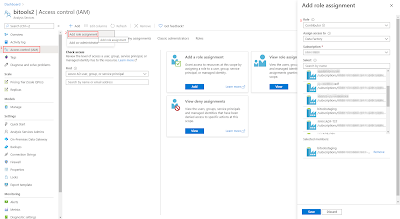
    Add ADF as Contributor to AAS


    2) Add Web Activity
    In your ADF pipeline you need to add a Web Activity to call the Rest API of Analysis Services. First step is to determine the Rest API URL. Replace in the string below, the <xxx> values with the subscription id, resource group and servername of your Analysis Services. The Rest API method we will be using is 'update':
    https://management.azure.com/subscriptions/<xxx>/resourceGroups/<xxx>/providers/Microsoft.AnalysisServices/servers/<xxx>/?api-version=2017-08-01

    Example:
    https://management.azure.com/subscriptions/a74a173e-4d8a-48d9-9ab7-a0b85abb98fb/resourceGroups/bitools/providers/Microsoft.AnalysisServices/servers/bitools2/?api-version=2017-08-01

    Second step is to create a JSON message for the Rest API. The tier in this message is either: Developer, Basic or Standard. Within those tiers you have the (instance) name like B1, B2, S1, S2 until S9. Note that you can upscale from Developer to Basic to Standard, but you cannot downscale from Standard to Basic to Developer. Since Developer has only one instance you will probably never use that within this JSON message.
    {
       "sku":{
          "capacity":1,
          "name":"S1",
          "tier":"Standard"
       }
    }
    
    or
    {
       "sku":{
          "capacity":1,
          "name":"B2",
          "tier":"Basic"
       }
    }
    
    • Add the Web activity to your pipeline
    • Give it a descriptive name like Upscale AAS (or Downscale AAS)
    • Go to the Settings tab
    • Use the Rest API URL from above in the URL property
    • Choose PATCH as Method
    • Add the JSON message from above in the Body property
    • Under advanced choose MSI as Authentication method
    • Add 'https://management.azure.com/ in the Resource property (different than process example)
    Web Activity calling the AAS Rest API

    Then Debug the Pipeline to check the scaling action


    3) Retrieve info
    By changing the method type from PATCH to GET (body property will disappear), you can retrieve information about the AAS like pricing tier (or status). You could for example use that to first check the current pricing tier before changing it.
    Retrieve service info via GET


    Summary
    In this post you learned how change the pricing tier from your Analysis Services to save some money on your Azure bill. The big advantage of this method is that you don't need other Azure services which makes maintenance a little easier. In a previous post we already showed you how to pause or resume your AAS with the Rest API.

    Friday, 12 February 2021

    DevOps Snack: Keyboard Shortcuts YAML editor

    Case
    How do I comment out a block of code in the YAML editor of Azure DevOps? Is there a keyboard shortcut to toggle line comments?
    Toggle line comments


    Solution
    Yes you can use the same keyboard shortcut as in Visual Studio:
    Comment: CTRL+K, CRTL+C 
    Uncomment:  CTRL+K, CRTL+U 

    And there is also an easier shortcut to switch between comment and uncomment:
    CRLT+/
    Press CTRL + / to (un)comment a block of code


    More commands can be found by pressing F1. What's your favorite keyboard shortcut. Let us know in in the comments.
    Press F1 to see all Keyboard Shortcuts