Saturday, 14 November 2020

Process Analysis Service with Firewall in ADF only

Case
How do I process my Azure Analysis Services (AAS) within Azure Data Factory (ADF) when the firewall of AAS is turned on? I 'm getting the following error:

Cannot connect to server 'bitools'. Client with IP Address '40.74.24.250' is not allowed to access the server. To enable access, use the Firewall settings in Azure Management Portal. It may take up to 5 minutes for this change to take effect. More information on configuring firewall and setting IP address ranges can be found here: https://go.microsoft.com/fwlink/?linkid=2099963

Azure Anaylis Services with firewall turned on


Solution
Within ADF you have two options. The first option is to add the IP addresses of ALL data factories within your region to the firewall of AAS. You can download a list and add those IP addresses to the firewall. You could even schedule a powershell script to do that for you to keep your firewall up-to-date in case the list changes. A downside could be that now a lot of data factories can access your AAS.

The second option is to retrieve the public IP address of your current ADF during runtime and then add it temporarily to the firewall of AAS. Note that this is a first attempt which still needs some improvement and testing to make it future proof. First a picture of the solution and then detailed steps of each activity.
The solution


1) Add ADF as contributer to AAS
Since we will chance the service settings of AAS from within ADF, we will need to use Access control (IAM) to make our ADF a contributor for the AAS where we want to change the firewall. Note that this step will not give ADF access to the models, but only to the service.
  • Go to your AAS in the Azure portal
  • In the left menu click on Access control (IAM)
  • Click on + Add and choose Add role assignment
  • In the new Add role assignment pane select Contributor as Role
  • In the Assign access to dropdown select Data Factory
  • Select the right Subscription
  • And then Select your Data Factory and click on the Save button
Add ADF as Contributor to AAS


2) Get Current Public IP Address of ADF
Now back to ADF. You can execute a webrequest to one of the many public services to retrieve the public IP address of the ADF server that runs your pipeline:
  • https://icanhazip.com
  • https://ident.me
  • https://ifconfig.me/ip
  • https://ipinfo.io/ip
  • http://smart-ip.net/myip
Now the steps to take:
  • Create a new pipeline in ADF and add a Web activity
  • Give the activity a descriptive name because we need it in a subsequent activity
  • Add one of the above web addresses as URL on the Settings tab
  • The last step is to select GET as method
In a subsequent activity that is connected to this Web activity we use the follow expression to retrieve the IP Address: @activity('Get Current Public IP Address').output.Response
Get Public IP address of ADF


3) Get Current AAS settings
The Rest API that sets the firewall settings of AAS can unfortunately not add a single firewall rule. Instead it will delete all rules and then add news ones. To avoid other services or persons losing access to the AAS server we first need to retrieve the current settings. This is done via a Rest API. Therefore the first step is to determine the Rest API URL. Replace in the string below, the <xxx> values with the subscription id, resourcegroup name and servername of your Analysis Services. The Rest API method we will be using is 'Get Details':
https://management.azure.com/subscriptions/<xxx>/resourceGroups/<xxx>/providers/Microsoft.AnalysisServices/servers/<xxx>?api-version=2017-08-01
Example:
https://management.azure.com/subscriptions/aaaa-bbbb-123456-cccc/resourceGroups/RG_production/providers/Microsoft.AnalysisServices/servers/bitoolsserver?api-version=2017-08-01

Add a second Web activity to the pipeline
  • Give the activity a descriptive name because we need it in a subsequent activity
  • Add the above web address as URL on the Settings tab
  • Next select GET as method
  • Under Advanced set Authentication to MSI
  • Set Resource to https://management.azure.com/
The Rest API will return a JSON message with ALL the settings of the service, including the firewall rules. In a next step we can retrieve these settings with the following expression:
@STRING(activity('Get Current AAS settings').output)

Retrieve AAS Service settings


4) Merge current firewall settings with new ip address
In this step we will merge the current firewall settings (from step 3) with the runtime ip address of ADF (from step 2). Unfortunately the expression language of ADF is not that extensive (yet). For example the indexof expression does not have a search starting position. Therefore for now we have chosen to merge those two with a little Stored Procedure. But please share your suggestion for alternatives in the comments.

First add the following Stored Procedure to one of your Azure SQL databases. It will return both the current firewall setting part of the entire JSON and the new adjusted firewall part. That first one can be used to restore the settings as final step.
T-SQL Stored Procedure
CREATE PROCEDURE [dbo].[UpdateIpV4FirewallSettings]
(
	@jsonmessage nvarchar(max)
,	@firewallRuleName nvarchar(50)
,	@ipAddress nvarchar(20) 
)
AS
BEGIN
	-- =============================================
	-- Recieves the current AAS settings as a JSON
	-- message and extracts the firewall settings
	-- from it. Then the firerullname and the ip
	-- address are added.
	--
	-- The select query returns the new and old
	-- firewall settings to update and restore
	-- afterwards.
	-- =============================================

	SELECT	CAST(
				SUBSTRING(@jsonmessage, 1, 15) + -- properties
				SUBSTRING(@jsonmessage, CHARINDEX('"ipV4FirewallSettings":',@jsonmessage , 1), CHARINDEX(']',@jsonmessage , CHARINDEX('"ipV4FirewallSettings":',@jsonmessage , 1)) - CHARINDEX('"ipV4FirewallSettings":',@jsonmessage , 1)) + -- oldfirewallrules
				iif(CHARINDEX('"firewallRuleName":"' + @firewallRuleName, @jsonmessage , 1) > 0 OR CHARINDEX(@ipAddress, @jsonmessage , 1) > 0,'',',{"firewallRuleName":"' + @firewallRuleName +'","rangeStart":"' + @ipAddress + '","rangeEnd":"' + @ipAddress + '"}') + -- newfirewallrules
				SUBSTRING(@jsonmessage,CHARINDEX('],"enablePowerBIService":',@jsonmessage , 1), CHARINDEX('}',@jsonmessage , CHARINDEX('],"enablePowerBIService":',@jsonmessage , 1)) - CHARINDEX('],"enablePowerBIService":',@jsonmessage , 1) + 1) + -- powerbirules
				'}}' -- end
			as nvarchar(4000))
			as NewFirewallSettings
	,		CAST(
				SUBSTRING(@jsonmessage, 1, 15) + -- properties
				SUBSTRING(@jsonmessage, CHARINDEX('"ipV4FirewallSettings":',@jsonmessage , 1), CHARINDEX(']',@jsonmessage , CHARINDEX('"ipV4FirewallSettings":',@jsonmessage , 1)) - CHARINDEX('"ipV4FirewallSettings":',@jsonmessage , 1)) + -- oldfirewallrules
				SUBSTRING(@jsonmessage,CHARINDEX('],"enablePowerBIService":',@jsonmessage , 1), CHARINDEX('}',@jsonmessage , CHARINDEX('],"enablePowerBIService":',@jsonmessage , 1)) - CHARINDEX('],"enablePowerBIService":',@jsonmessage , 1) + 1) + -- powerbirules
				'}}' -- end
			as nvarchar(4000))
			as oldFirewallSettings
END

Now back to the pipeline to merge the json message and the ip address. We will solve this by calling the above Stored Procedure within a Lookup activity.
  • Add the Look up activity and give it a descriptive name (we need it in the next step)
  • Connect both previous activities to this new activity (in parallel, see screenshot)
  • Go to the settings tab and select the (/ create a) Source dataset that connects to the Azure SQL Database that contains the above Stored Procedure
  • Select Stored Procedure under Use query
  • Select the new Stored Procedure under Name
  • Hit the Import parameter button to add three string parameters
  • Enter the following expressions
    • firewallRuleName - @concat('ADF-',pipeline().DataFactory)
    • ipAddress - @activity('Get Current Public IP Address').output.Response
    • jsonmessage - @STRING(activity('Get Current AAS settings').output)
The output of this activity will be use in the next activity:
@activity('IpV4FirewallSettings Message').output.firstRow.NewFirewallSettings
@activity('IpV4FirewallSettings Message').output.firstRow.OldFirewallSettings
Lookup Activity calling Stored Procedure


5) Update AAS Firewall
In this step we will update the firewall settings of AAS to allow ADF to process the tabular model. This is done via a Rest API call of the Update method within a Web activity. This is exactly the same URL as step 3. Copy it

Add an other Web activity to the pipeline and connect it to the last activity (see screenshot).
  • Give the activity a descriptive name
  • Add the web address from step 3 as URL on the Settings tab
  • Next select PATCH as method (instead of GET like in step 3)
  • Click on + New after Headers to add a new header
    • Use Content-type as Name
    • Use application/json as Value
  • As body we will use the NewFirewallSettings from the previous step:
    @activity('IpV4FirewallSettings Message').output.firstRow.NewFirewallSettings
  • Under Advanced set Authentication to MSI
  • Set Resource to https://management.azure.com/
Update AAS Firewall


6) Process AAS model
Finally we can do the actual processing of the tabular model. Since we all ready described this in detail in a previous post you have to take a little trip to that post. Make sure to connect the new Web activity to the last activity in the pipeline (see screenshot).
Process AAS tabular model


7) Update AAS Firewall
The last step is to restore the firewall settings so this ADF server will no longer have access to your AAS. The steps are almost identical to step 5 with two differences. Copy and paste that Web activity and connect it to the process activity, but then change the green Success line to a blue completion line. Then it will always restore the firewall settings even if the process fails.
Change the dependency condition between the activities


Next change  is the Body property on the Settings pane. Change it to retrieve the OLD firewall settings:
@activity('IpV4FirewallSettings Message').output.firstRow.OldFirewallSettings
Restore AAS firewall


Summary
In this post you saw a (experimental) solution to handle the firewall problem: adding the IP address of a shared service/server to your AAS firewall. This is especially necessary when your service doesn't support VNET (like AAS).

There is still a lot of room for improvements. In particular the merge part in step 4. An other concern is that the activities of one pipeline could be executed by multiple ADF servers (each having there own ip address). 

Feel free to experiment with this solution and leave your suggestions for improvements in the comments below. However don't use it in a production environment... or do it at your own risk.

I a feature post we will download the JSON file with Azure IP Address and at those to the firewall.


Sunday, 1 November 2020

ADF Snack: Adding metadata columns

Case
How do I add (and populate) metadata columns to my stage tables from within Azure Data Factory without executing a Stored Procedure with an update query afterwards?
Adding metadata columns in ADF


Solution
The Copy Data activity has on the Source pane a section called Additional columns that allows you to create extra columns and populate them with values from Data Factory like the run id, run date, pipeline name and file path. It also allows you to copy columns (f.e. to populate two destination columns with the same source value), but It does not allow you to add fancy stuff like a hash of all columns. For the fancy ETL stuff you should take a look at Mapping Data Flows or solve it afterwards with that Stored Procedure activity and some TSQL code.

1) Copy data acticity
For this example we will use a CSV file as source and add a couple of new metadata columns that are not available in the CSV file itself. We will also copy one of the existing columns to a new column. This is very useful if you want to populate two destinations columns with the value from one source column.
  1. Go to your existing Copy Data Activity and then to the Source pane.
  2. At the bottom you will find the Additional columns section. Click on the + New icon to add new columns.
  3. The first column is using an out of the box value by selecting $$FILEPATH in the value column. It retrieves the filename of the source file. Note that this is of course only available when your source is a file.
  4. The second column is using the column copy option. Select $$COLUMN in the value column and then in the third column the column name from the file that you want to copy. If no existing columns are available then hit the Refresh icon in the Additional columns section (or check the dataset).
  5. The third column is using a hardcoded text describing the source application where the file came from.
  6. The next three columns are filled via the dynamic content option to add values from Data Factory. In this example @pipeline().RunId, @pipeline().TriggerTime and @pipeline().Pipeline. You could also add columns with values from parameters or variables.
Adding six additional (metadata) column


2) The result
To see the result of adding the additional columns click on the Preview data icon. Next you can optionally change the values of the expressions. To see the final preview click on the OK button.
Preview of the Additional columns


Summary
In this post you learned how to add extra columns with metadata information without using UPDATE queries in an Stored Procedure Activity. The options are a bit basic, but with for example the Get Metadata activity you could retrieve additional information from the file like the last modified date or file size and add that as an Additional column as well.
Adding additional info from Get Metadata activity


Thursday, 15 October 2020

Synapse snack: No new Azure SQL Database allowed

Case
I'm creating a new Synapse Analytics Workspace but it throws an error when deploying it: Location '' is not accepting creation of new Windows Azure SQL Database servers at this time.
Location '' is not accepting creation of new
Windows Azure SQL Database servers at this time.
(Code: SqlServerRegionDoesNotAllowProvisioning)


Solution
This doesn't mean that all Azure SQL Server are sold-out in your Azure region and that you have to wait until Microsoft buys more servers. It means SQL Server is not registered as an allowed resource provider on your Azure Subscription.

This will probably not happen very often because people who want to use Synapse have almost certainly used an Azure SQL Server before, but on a new subscription it is not registered by default.

When creating a new Synapse Workspace it does ask to first register the Microsoft.Synapse resource provider, but it doesn't mention that it also requires Microsoft.Sql.
The Synapse resource provider needs to be registered
to this subscription


Register Resource Providers
The solution is very simple, but it does require owner permissions on the Azure Subscription.
  • In the Azure Portal go to Subscriptions (search for Subscriptions if it's not on the dashboard or in the menu)
  • Click on your Subscription if you have multiple subscriptions to go to the overview page of your subscription
  • In the left menu (at the bottom) click on Resource Providers
  • Search for SQL
  • Select Microsoft.SQL and click on the register button
Register a Resource Provider


Registering will take a couple of minutes and after that you can add a Synapse Workspace without the above error. One last observation... it doesn't create any (visible) Azure SQL Servers in any of the resource groups.
Deployment of Synapse Workspace succeeded


Tuesday, 13 October 2020

Execute pipelines from an other Data Factory Sync

Case
Can I use the Execute Pipeline Activity to execute pipelines from an other Data Factory? Or do we need an other activity for this?
Can you use the Execute Pipeline Activity for this?


Solution
First of all why would you like to have multiple Data Factories other then for a DTAP-street (Development, Testing, Acceptance and Production). There are several reasons, for example:
  • Different departments/divisions each having their own Data Factory
    For example to prevent changes to your pipelines by users of a different department or to make it easier to split the Azure consumption between two divisions.
  • Different regions for international companies
    Either due legal reasons where for example the data may not leave the European Union
    Or to prevent paying unnecessary outbound data costs when your data is spread over different regions
  • Security reasons
    To prevent others to use the access provided via the Managed Identity of ADF. If you give your ADF access via MSI to an Azure Key Vault or an Azure Storage Account then everybody using that ADF can access that service via ADF.
If you have any other good reasons to use multiple Data Factories please let us know in the comments below.

And although you may have multiple Data Factories you could still use one Data Factory to execute pipelines from a different Data Factory. However you cannot use the Execute Pipeline Activity because it can only execute pipelines within the same Data Factory. 

You can either use the Web Activity or the Web Hook Activity for this. The Web Activity always executes the pipeline asynchronous. This means it does not wait for the result. The Web Hook Activity executes the child pipeline synchronous. Which means it waits until the child pipeline is ready and you could also retrieve the execution result via a call back. In this blog post we will show the synchronous Webhook Activity and in a previous blog post we already showed the asynchronous Web Activity.

1) Give parent access to child via MSI
We will not use a user to execute the pipeline in the child(/worker) Data Factory, but instead we will give the managed identity (MSI) of the parent(/master) Data Factory access to the child(/worker) Data Factory. The minimum role needed is Data Factory Contributor, but you could also use a regular Contributor or Owner (but less is more).
  • Go to the child(/worker) Data Factory (DivisionX in this example)
  • In the left menu click on Access control (IAM)
  • Click on the +Add button and choose Add role assignment
  • Select Data Factory Contributor as Role
  • Use Data Factory as Assign access to
  • Optionally change the subscription
  • Optionally enter a (partial) name of your parent ADF (if you have a lot of data factories)
  • Select your parent ADF and click on the Save button
Give one ADF access to other ADF


2) Add Call Back to Child Pipeline
The parent(/master) pipeline will call the child(/worker) and wait until it receives a call back or until the timeout exceeds. Therefor we need to add a call back activity (in the form of a Web/Webhook activity) to the child pipeline. This activity should be the last activity in your pipeline. There can be more (for example one for success and one for failure), but only the first call back will be handled by the parent.
  • Go to the child(/worker) Data Factory (DivisionX in this example)
  • Open ADF via the Author &Monitor link
  • Open the pipeline that you want to execute from the parent(/master) pipeline
  • Add a String parameter called callBackUri. The value will be automatically provided by the parent
  • Add a String parameter called myInputParam1. The value will be manually provided by the parent
  • Add a Web Activity with the following settings
    • URL: @pipeline().parameters.callBackUri   (to retrieve the pipeline parameter)
    • Method: POST
    • Body: {"Output":{"myOutputParam1":"failed"},"StatusCode":"401"}
      Every status code above 399 will tell the parent that the child failed. This can be a random number, but you could also use the official list to give a little more meaning. An other option is to use the output tag which can contain one or more 'output' parameters that can be read by the parent pipeline. You could for example pass through the error message with the Add dynamic content option.

      If you also want to pass an error description to the parent then you must extend the json message with an error tag {"Output":{"myOutputParam1":"failed"},"StatusCode":"401","error":"ErrorCode":"ParameterError","Message":"Required parameters where not provided"}}
Add two pipeline parameters


Web Activity for callback 


3) Determine URL
This solution will call the Create Run RestAPI of ADF to execute the pipeline. For this you need to replace the marked parts of the URL below by the Subscription ID, Resource Group name, Data Factory name and the Pipeline name of the child(/worker) pipeline. We will use this URL in the next step.

Example URL:
https://management.azure.com/subscriptions/aaaaaa-bbbb-1234-cccc-123456789/resourceGroups/DivisionX/providers/Microsoft.DataFactory/factories/DevisionX-ADF/pipelines/MyChildPipeline/createRun?api-version=2018-06-01


4) Webhook Activity
So for this second example we will use the Webhook Activity. This will execute the pipeline of the child(/worker) pipeline, but now it will wait until it receives a call back or until the timeout exceeds. Besides a status it can also retrieve messages from the child(/worker) ADF. See the json message in step two.
  • Go to your master ADF and click on Author & Monitor
  • Create a new pipeline and add a Webhook Activity to the canvas of the new pipeline
  • Give it a suitable descriptive name on the General Tab
  • Go to the Settings tab and enter the URL of the previous step
  • Choose POST as Method
  • Add a new header called Content-Type and with value application/json
  • As Body enter a JSON message. This could either be a dummy message or you could supply parameters in this message. The child parameter is called myParam1: {"myInputParam1":"bla bla"}
  • Use MSI as Authentication method
  • Enter this URL as Resource: https://management.core.windows.net/
Webhook Activity calling a child pipeline in an other ADF


5) Testing
Now trigger the new parent pipeline and check the monitor of the child ADF. You will see it receives two parameters. One provided in the JSON message in de BODY property and one provided by the Webhook activity itself.
Child pipeline - two parameters


Note that the child pipeline did not fail, because we handled the error. However the parent pipeline did fail because we sent a status code higher than 399. Next check the monitor of the child ADF and see the output parameters of the Webhook activity. It received a value from the child pipeline that could be used in a next activity
Parent pipeline - the result of the callback


Summary
In this blog post you learned how to give one ADF access to an other ADF and how to execute pipelines in that other ADF. The Webhook activity solution gives you a little more control compared to the Web activity. And with the correct json messages you can pass through messages and parameters from the parent to the child and back to the parent.

.

Saturday, 10 October 2020

Snack: Create Azure Automation Runbook

Case
How do you write and execute PowerShell code in Azure?

Azure Automation PowerShell Runbook


Solution
There are several options to execute PowerShell code in Azure. For example in an Azure Function or in an Azure DevOps pipeline. This post shows you how to write and execute PowerShell code in an Azure Automation Runbook. Other blog posts with PowerShell solutions for DWH projects will link to this blogpost (to don't repeat ourselves). You can find them here.

Note: the screenshots and animated gifs could be slightly outdated on the next layout change of the Azure portal, but we will try to occasionally update those.

1) Create Azure Automation Account
To create a PowerShell runbook we first we need to create an Automation Account. If you already have one with the Run As Account enabled then you can skip this step. The Run As Account allows you to login and easily interact with other Azure Services.
  • Go to the Azure portal and create a new resource
  • Search for automation
  • Select Automation Account
  • Choose a useful name for the Automation Account (it will probably host multiple runbooks)
  • Select your Subscription, Resource Group and the Region
  • Most examples will use the Azure Run As account. So make sure to enable it and then click on the Create button.
Create Azure Automation Account


2) Add Modules
Before you start writing code you often first need to add some PowerShell modules to your Azure Automation Account. For this example we will add a PowerShell module called Az.Sql which for example is used to up- and downscale Azure SQL databases. Note that modules often depend on other modules like this one depends on Az.Accounts. Make sure to add those modules first, but you will be notified if an other module is required. Try to avoid the outdated AzureRm modules and use the Az modules instead (you cannot mix them).

If you forget this step you will get error messages while running your code that state that some of your commands are not recognized:
Get-AzSqlDatabase : The term 'Get-AzSqlDatabase' is not recognized as the name of a cmdlet, function, script 
file, or operable program. Check the spelling of the name, or if a path was included, verify that the path is correct 
and try again.
  • Go to the newly created Azure Automation Account
  • Go to Modules in the left menu
  • Click on the Browse Gallery button
  • Search for Az.Accounts
  • Click on Az.Accounts in the result and import this module
  • Also search for Az.Sql (but wait until Az.Accounts is actually imported)
  • Click on Az.Sql in the result and import this module
Adding a new module to your Automation Account


Note: if you are using an existing Automation Account then you probably already added Az.Accounts, but you might need to update it to a newer version.

2b)  Update Modules
Sometimes you need to update one or more modules within your automation account. Not sure why, but unfortunately the removed this option from the Azure Automation gui! More information here. The new way is to import PowerShell code to a new runbook and then run that runbook to update all your modules (or manually delete all the modules one by one and then add them again). 
  • Go to github and click on the little triangle on the Code button to download the zip file
  • Unzip the downloaded file
  • Go to runbooks and click on Import a runbook
  • Import the local file Update-AutomationAzureModulesForAccount.ps1
  • Give the runbook a description (Name and Runbook type are automatically populated)
  • Edit the runbook and hit the testpanel
  • Enter values for the parameters, besides ResourceGroupName and AutomationAccountName fill in the AzureModuleClass with Az (default value is AzureRm)
  • Hit the start button and check
Update all modules


3) Create Runbook
Now we are ready to create a PowerShell runbook in the newly created Azure Automation Account and start writing some PowerShell code.
  • Go back to the overview page of your newly created Azure Automation Account
  • Click on Runbooks in the left menu
  • Click on the + Create a runbook button to create a new Runbook
  • Enter a descriptive name for the Runbook like UpDownScaleDb
  • Select PowerShell as Runbook type
  • Add a short description to explain the purpose your code and click on the Create button
Create PowerShell Runbook


4) Edit Runbook code
Next edit the new Runbook if it wasn't already opened by the previous step and start writing (or pasting) code in the editor. It often exists of three parts: Parameters, Login and the actual code. Make sure not to store secrets in you code, but use Azure Key Vault instead. Want to send a notification from within your runbook, then use SendGrid.
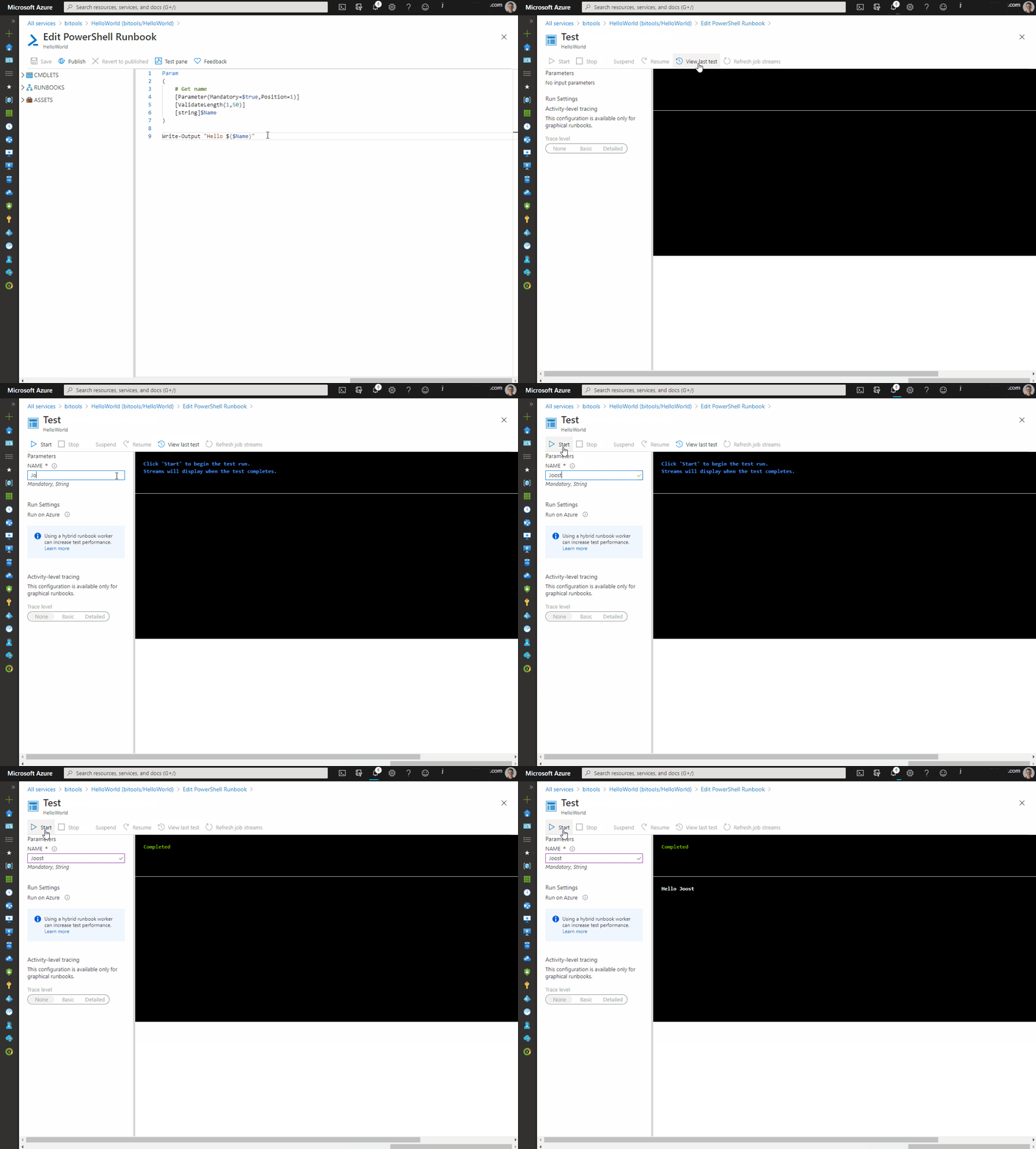
# PowerShell example code for testing
Param
(
    # Get your name
    [Parameter(Mandatory=$true,Position=1)]
    [ValidateLength(1,50)]
    [string]$Name
)

Write-Output "Hello $($Name)"

5) Testing
It is often easier to write and test the main code first in PowerShell ISE or Visual Studio Code on your local machine which is much faster and easier to debug. But to test the complete code including parameters and the login you can test your code within the runbook editor. Note that it can take over a minute before the code executes since it will first enter an execution queue.
  • Click on the Test pane button above your script.
  • Then optionally fill in the parameter values on the left side
  • And then hit the Start button to execute the script.
Testing your runbook


6) Scheduling Runbook
If you want to schedule the execution of your runbook in Azure Automation you first need to publish it via the Runbook editor. After it has been published you can add a schedule to this runbook.
  • Edit the script in the runbook editor
  • Click on publish (the editor will close and you will be redirected to the overview page)
  • In the overview page click on Link to schedule
  • In the Schedule menu you can select an existing schedule or create a new one
  • In the Parameter menu you can provide the value for the parameters
Add schedule to runbook


7) Add Webhook
If you don't want to schedule your Runbook, but call it from an other service like Azure Data Factory, you have to create a Webhook for ADF

Make sure to choose a correct expire date. By default it is only valid for one year. Also make sure to copy the URL, because you can only see and copy it once. You need this URL in ADF for the Web(hook) activity. Don't share the URL because it is a URL and Password in one.
Adding a Webhook to a Runbook


Summary
In this post a general explanation on how to create and use an Azure Automation PowerShell Runbook. The real solutions are available here and from now on those posts about Azure Automation will link to this post for the general steps.