Monday, 3 October 2022

Deploy Synapse workspaces via DevOps - Setup

Case
I want to deploy my development Synapse workspace to the next environment (test, acceptance or production). What is the easiest way to automate this proces via DevOps? And is it possible to ignore the publish button just like in Data Factory.
Release Synapse Workspace via DevOps


Solution
With the new (updated) Synapse add-on for DevOps it is much easier to release Synapse then it was to release Data Factory. And if you use the validateDeploy operation (instead of deploy) then you don't need the workspace_publish branch. It can directly read from the collaboration branch so that you don't have to use the publish button to initiate the CICD proces.

This solution contains of two separate main posts and a couple of side posts.
  1. Setup Synapse and  DevOps in preparation of the pipeline (this post).
  2. Setup the YAML pipeline to do the actual deployment.
Addiontal posts

1) Setup Git repository
Setup your Synapse Workspace to use a Git repository. You can find this in Synapse under the toolbox icon (manage) in the left menu. Beside choosing the right Collaboration branch (that differs per organization and branch strategy), it is also usefull to change the Root folder to for example /Synapse/. This allows you to create a separate folder in the root for your CICD files like YAML and PowerShell scripts.
Git repository setup in Synapse


In your repository it should look something like this where the Synapse files are separated from the CICD files. Make sure to create a CICD folder and a YAML sub-folder to accommodate the pipeline files from the next post.
Synaose in the (DevOps) Repository 


2) Give Service Principal Access
To do the actual deployment of the Synapse Workspace, you want to use a Service Principal. Create one or ask your AAD administrator to provide one if you are not authorized to create one yourself.

We want to give this Service Principal (SP) the minimal rights in the target workspace to do the deployment. For this we will give it the Synapse Artifact Publisher role within Synapse. You can do this in Synapse under the toolbox icon (manage) in the left menu. Then choose Access control and use the +Add button to give the SP the correct role. In the next step we will create a Service Connection in Azure DevOps with this SP. Do this for all target workspaces (tst/acc/prd).
Access control - Make SP Synapse Artifact Publisher


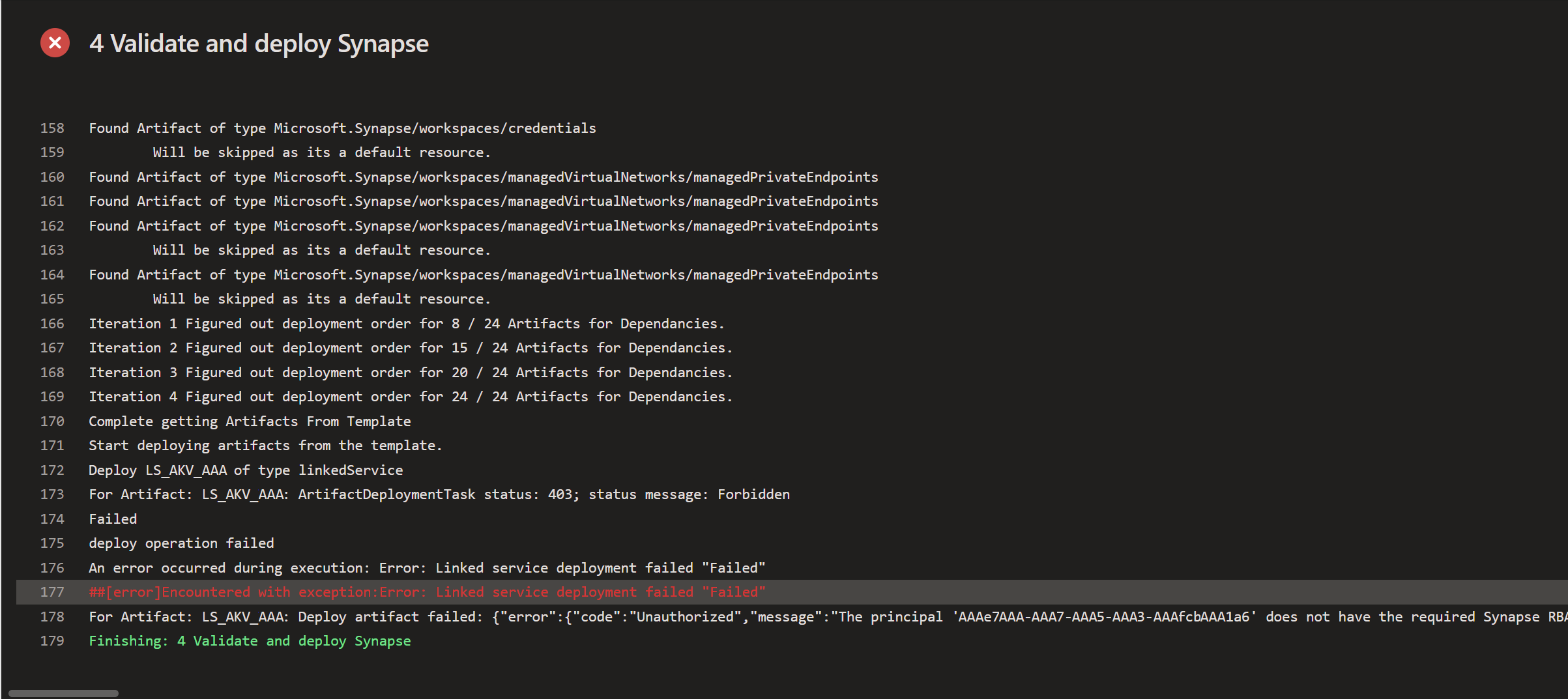
If your Service Principal didn't get the correct authorization then you will get the following error during the deployment in DevOps.
Start deploying artifacts from the template.
Deploy LS_AKV_AAA of type linkedService
For Artifact: LS_AKV_AAA: ArtifactDeploymentTask status: 403; status message: Forbidden
Failed
deploy operation failed
An error occurred during execution: Error: Linked service deployment failed "Failed"
##[error]Encountered with exception:Error: Linked service deployment failed "Failed"
For Artifact: LS_AKV_AAA: Deploy artifact failed: {"error":{"code":"Unauthorized","message":"The principal 'aaaaaaaa-bbbb-cccc-dddd-12345678' does not have the required Synapse RBAC permission to perform this action. Required permission: Action: Microsoft.Synapse/workspaces/linkedServices/write, Scope: workspaces/mySynapseAcc."}}
Unauthorized


3) Setup DevOps Service Connection
The next step is to create a Service Connection in DevOps. In the Project settings of your DevOps project you can find the option Service connections under Pipelines. You need to create a new Service Connection of the type Azure Resource Manager (ARM) for which you need the Service Principal Id (application id), the Service principal key (the secret) and the Tenant Id of your Azure Active Directory. Make sure to give the service connection a useful name. You will need the Service Connection name in the YAML code of the next post.
Add Service Connection


4) Add Synapse workspace deployment Add on
Microsoft made the deploy of a Synapse workspace a little easier then for Data Factory by creating a DevOps add-on for Synapse. You need to add this to your DevOps Organization by clicking the green button with Get it free. If you are not an DevOps Organization administrator then you need to ask someone else to approve the installation. 
Synapse workspace deployment addon


If you already have this add-on then make sure to update it to at least 2.3.0. You can find the add-on in the Organization Setting under General - Extensions.
Check version of extension


Conclusion
In this first post we showed some preparations that are not that difficult, but you will need the right access for it or be able to ask a colleague for it that does have access to the AAD and the DevOps organization. In the next post we will create a YAML pipeline that consists of two YAML files to do the actual deployment.

Sunday, 2 October 2022

Synapse - error: missing required argument 'factoryId'

Case
I want to deploy a Synapse workspace via DevOps and the Synapse workspace deployment addon, but it is giving me an error: Stderr:  error: missing required argument 'factoryId'.  How do I solve this error?

error: missing required argument 'factoryId'


2022-10-02T19:05:21.6763177Z ##[section]Starting: Synapseworkspacedeployment
2022-10-02T19:05:21.6900329Z ==============================================================================
2022-10-02T19:05:21.6900630Z Task         : Synapse workspace deployment
2022-10-02T19:05:21.6900882Z Description  : Deployment task for synapse workspace v2
2022-10-02T19:05:21.6901097Z Version      : 2.3.0
2022-10-02T19:05:21.6901303Z Author       : Microsoft Corporation
2022-10-02T19:05:21.6901526Z Help         : Displays the name of your extension v2
2022-10-02T19:05:21.6901791Z ==============================================================================
2022-10-02T19:05:22.5141212Z Bundle source :  https://web.azuresynapse.net/assets/cmd-api/main.js
2022-10-02T19:05:22.5165738Z Downloading asset file
2022-10-02T19:05:23.5975682Z Asset file downloaded at :  D:\a\1\s\downloads\main.js
2022-10-02T19:05:23.5986866Z Starting export operation
2022-10-02T19:05:23.5989932Z Executing shell command
2022-10-02T19:05:23.5991887Z Command :  node D:\a\1\s\downloads\main.js export "D:\a\1\SynapseArtifact\" dwhtst ExportedArtifacts
2022-10-02T19:05:25.3052935Z Stderr:  error: missing required argument 'factoryId'
2022-10-02T19:05:25.3054315Z 
2022-10-02T19:05:25.3225669Z Shell execution failed.
2022-10-02T19:05:25.3227048Z An error occurred during execution: Shell execution failed.
2022-10-02T19:05:25.3262506Z ##[error]Encountered with exception:Shell execution failed.
2022-10-02T19:05:25.3355687Z ##[section]Finishing: Synapseworkspacedeployment
Solution
This error points to a mistake in the ArtifactsFolder property of the Synapse workspace deployment@2 task. If you don't use the correct folder or even add a forward slash at the end (!) then you will get a not very descriptive error: Stderr: error: missing required argument 'factoryId'. If you get this error then make sure to add the treeview step in your pipeline to double check whether the folder is correct. It should point to the folder with publish_config.json file in it. However you will also get this error if you end the path with a forward slash!
            ###################################
            # Show treeview of agent
            ###################################
            - powershell: |
                Write-Output "Folder and file treeview of Pipeline_Workspace folder:"
                tree "$(Pipeline.Workspace)" /F
              displayName: 'Show treeview of Pipeline_Workspace folder'


            ###################################
            # validateDeploy
            ###################################
            - task: Synapse workspace deployment@2
              inputs:
                operation: validateDeploy
                ArtifactsFolder: '$(Pipeline.Workspace)/SynapseArtifact'
                azureSubscription: DevOps
                ResourceGroupName: dhwacc
                TargetWorkspaceName: rg_dwhacc
                DeleteArtifactsNotInTemplate: true

Conclusion
Double check the artifact folder and don't add a forward slash at the end of it. The forward slash bug(?) occurred in version 2.3.0 (9/2/2022).

Friday, 30 September 2022

Synapse - 'node' is not recognized as an command

Case
I want to deploy a Synapse workspace via DevOps and the Synapse workspace deployment addon, but it is giving me an error: Stderr: 'node' is not recognized as an internal or external command, operable program or batch file. How do I solve this error?

Node not known in DevOps


Solution
Just like with the deployment of Data Factory this add on also uses node.js to do the actual deployment. If you are using a self-hosted agent then you need to install node.js on your DevOps agent (VM) or use the Node.js Tool Installer task before the Synapse Workspace Deployment task.

NodeTool@0


###################################
# 2 Installs Node.js on agent
###################################
- task: NodeTool@0
  displayName: '3 Install Node.js'
  inputs:
    versionSpec: '16.x'
    checkLatest: true  
Conclusion
In this short post you learned how to overcome the unrecognized node command in your DevOps Deployment pipeline. A simple manual installation of node.js or an automated installation via your CICD pipeline will do the trick.

Also see our posts of setting up Synapse and DevOps and creating the YAML pipeline.

Please note that you need to keep your node.js version up-to-date to avoid new error in your pipeline.

Tuesday, 13 September 2022

Sending test messages to Azure Event Hubs

Case
I want to send dummy messages to Azure Event Hubs to test the streaming process before the actual service starts sending real messages.  Is there an easy way to send a bulk load of test messages to Azure Event Hubs?
Sending messages to Azure Event Hubs


Solution
Yes we could use for example a little bit of PowerShell code to send dummy messages to Azure Event Hubs via a Rest API. To do that we first need to collect some names and a key from Azure Event Hubs.

1)  Namespace and Event Hub name
Go to your Event Hubs Namespace in the Azure Portal and click on Event Hubs on the left side. In the top left corner you will find the Event Hubs Namespace (1) and in the list in the center of the page you will find the name of your Event Hub (2). Copy these names to your Powershell editor.
Namespace and Event Hub name


2) Shared access policies Name and Key
Now click on your Event Hub in the list above and then click on Shared access policies in the left menu. If there is no policy then create one (send is enough for testing). Then click on the policy to reveal the keys. Copy the Name (3) and one of the keys (4) to your Powershell editor.
Shared access policies name and key


3) The script
Now you have all the things you need from your event hub. Time to do some PowerShell coding. The top part of the script is to create a Shared Access Signature token (SAS token). This token is needed for authorization in the Rest API. In this part of the script you will also need to specify the names and key from the previous two steps under EventHubs Parameters.

The second part is sending a messsage via a Rest API to your event hub. To make it a little more usefull there is a loop to send multiple messages with a pause between each message. You must adjust the dummy message to your own needs by changing the column names and values. You can also specify the number of messages and the pause between each message.
####################################################################
# Create SAS TOKEN FOR AZURE EVENT HUBS
####################################################################
# EventHubs Parameters
$EventHubsNamespace = "bitools"
$EventHubsName = "myeventhub"
$SharedAccessPolicyName = "SendOnly"
$SharedAccessPolicyPrimaryKey = "1fhvzfOkVs+MxsZ/fakeZwrHTImD3YCCN7CGqYCAFN8kU="

# Create SAS Token
[Reflection.Assembly]::LoadWithPartialName("System.Web")| out-null
$URI = "$($EventHubsNamespace).servicebus.windows.net/$($EventHubsName)"
$Expires = ([DateTimeOffset]::Now.ToUnixTimeSeconds())+3600
$SignatureString = [System.Web.HttpUtility]::UrlEncode($URI)+ "`n" + [string]$Expires
$HMACSHA256 = New-Object System.Security.Cryptography.HMACSHA256
$HMACSHA256.key = [Text.Encoding]::ASCII.GetBytes($SharedAccessPolicyPrimaryKey)
$SignatureBytes = $HMACSHA256.ComputeHash([Text.Encoding]::ASCII.GetBytes($SignatureString))
$SignatureBase64 = [Convert]::ToBase64String($SignatureBytes)
$SASToken = "SharedAccessSignature sr=" + [System.Web.HttpUtility]::UrlEncode($URI) + "&sig=" + [System.Web.HttpUtility]::UrlEncode($SignatureBase64) + "&se=" + $Expires + "&skn=" + $SharedAccessPolicyName


####################################################################
# SEND DUMMY MESSAGES
####################################################################
# Message Parameters
$StartNumber = 1
$NumberOfMessages = 10
$MillisecondsToWait = 1000

# Determine URL and header
$RestAPI = "https://$($EventHubsNamespace).servicebus.windows.net/$($EventHubsName)/messages"

# API headers
$Headers = @{
            "Authorization"=$SASToken;
            "Content-Type"="application/atom+xml;type=entry;charset=utf-8";
            }

# Screenfeedback
Write-Host "Sending $($NumberOfMessages) messages to event hub [$($EventHubsName)] within [$($EventHubsNamespace)]"

# Loop to create X number of dummy messages
for($i = $StartNumber; $i -lt $NumberOfMessages+$StartNumber; $i++)
{
    # Create dummy message to sent to Azure Event Hubs
    $Body = "{'CallId':$($i), 'DurationInSeconds':$(Get-Random -Maximum 1000)}"

    # Screenfeedback
    Write-Host "Sending message nr $($i) and then waiting $($MillisecondsToWait) milliseconds"

    # execute the Azure REST API
    Invoke-RestMethod -Uri $RestAPI -Method "POST" -Headers $Headers -Body $Body

    # Wait a couple of milliseconds before sending next dummy message
    Start-Sleep -Milliseconds $MillisecondsToWait
}
When you run the PowerShell script with these parameters then 10 messages will be sent to your Event Hub.

Executing the Powershell script


4) Check messages in the Event Hub
Now we can check the messages in your event hub. Go to your eventhub (myeventhub in our case) and click on Process data. Then find the Stream Analytics Query editor and execute the query.
Stream Analytics Query editor


Here can see the contents of your 10 dummy messages with a very basic query.
The result


Conclusion
In this post you learned how to test the setup of your Event Hub and if you for example also connect to Azure Stream Analytics and a Power BI streaming dataset with a report and dashboard then you can also see the messages arriving live in your Power BI Dashboard. This will be shown in a separate post.

Note that the script is sending the messages one by one with an even period between each message. You could for example also make the pause period random or even execute the script in multiple PowerShell ISE editors at once to simulate a more random load of arriving messages.

Do you have an easier way to send test messages or a more sophisticated script then please share your knowledge in the comments below.

Wednesday, 31 August 2022

DevOps snack: If condition in YAML code

Case
Can you have an IF condition in your YAML code to make it more flexible? I want to do for example something different for my Data Factory deployment in Development, Test and Production.
IF conditions in YAML?


Solution
Yes the expression language also supports Conditional insertion (IF, ELSE, ELSEIF) which you can use to make your YAML code more flexible. However use it with moderation because it also makes is a bit less readable. The expressions won't get any color formatting in the browser.

If for example you want to adjust a parameter value depending on which branch is triggering the pipeline. Without the IF you would start with something like this:
jobs:
  - template: DeployADF.yml
    parameters:
      environment: tst
Between ${{ and }}: you can add an if construction. In this example it checks whether the name if the branch (that is triggering the pipeline) is equals to 'Development', 'Test' or 'Main'. Note the extra indention on the line below the IF.
jobs:
  - template: DeployADF.yml
    parameters:
      ${{ if eq(variables['Build.SourceBranchName'], 'Development' }}:
        environment: dev
      ${{ if eq(variables['Build.SourceBranchName'], 'Test' }}:
        environment: tst
      ${{ if eq(variables['Build.SourceBranchName'], 'Main' }}:
        environment: Prd

When the line below the IF would normally start with a minus sign then the if should also start with a minus sign. For example with the variable groups. Without the if you would start like below:
variables:
- group: ADFParamsTst
If you want to make the groupname depending on the branch name triggering the pipeline then you can add the IF between ${{ and }}: but the line should then start with a minus and also the line below the IF should start with a minus. Also note the extra indentions.
variables:
- ${{ if eq(variables['Build.SourceBranchName'], 'Development' }}:
  - group: ADFParamsDev
- ${{ if eq(variables['Build.SourceBranchName'], 'Test' }}:
  - group: ADFParamsTst
- ${{ if eq(variables['Build.SourceBranchName'], 'Main' }}:
  - group: ADFParamsPrd

Conclusion
In this blog you learned how to add an IF statement in your YAML code. Don't forget the extra indention on the next line below the IF and add the extra minus symbol before the IF when the line after the IF requires one. And don't make it too complex for your colleagues.

Thanks Collin Mezach for helping out.